

Claude Code settings
Configure Claude Code with global and project-level settings, and environment variables.
Claude Code offers a variety of settings to configure its behavior to meet your needs. You can configure Claude Code by running the /config command when using the interactive REPL, which opens a tabbed Settings interface where you can view status information and modify configuration options.
Configuration scopes
Claude Code uses a scope system to determine where configurations apply and who they're shared with. Understanding scopes helps you decide how to configure Claude Code for personal use, team collaboration, or enterprise deployment.
Available scopes
| Scope | Location | Who it affects | Shared with team? |
|---|---|---|---|
| Managed | Server-managed settings, plist / registry, or system-level managed-settings.json |
All users on the machine | Yes (deployed by IT) |
| User | ~/.claude/ directory |
You, across all projects | No |
| Project | .claude/ in repository |
All collaborators on this repository | Yes (committed to git) |
| Local | .claude/settings.local.json |
You, in this repository only | No (gitignored) |
When to use each scope
Managed scope is for:
- Security policies that must be enforced organization-wide
- Compliance requirements that can't be overridden
- Standardized configurations deployed by IT/DevOps
User scope is best for:
- Personal preferences you want everywhere (themes, editor settings)
- Tools and plugins you use across all projects
- API keys and authentication (stored securely)
Project scope is best for:
- Team-shared settings (permissions, hooks, MCP servers)
- Plugins the whole team should have
- Standardizing tooling across collaborators
Local scope is best for:
- Personal overrides for a specific project
- Testing configurations before sharing with the team
- Machine-specific settings that won't work for others
How scopes interact
When the same setting is configured in multiple scopes, more specific scopes take precedence:
- Managed (highest) - can't be overridden by anything
- Command line arguments - temporary session overrides
- Local - overrides project and user settings
- Project - overrides user settings
- User (lowest) - applies when nothing else specifies the setting
For example, if a permission is allowed in user settings but denied in project settings, the project setting takes precedence and the permission is blocked.
What uses scopes
Scopes apply to many Claude Code features:
| Feature | User location | Project location | Local location |
|---|---|---|---|
| Settings | ~/.claude/settings.json |
.claude/settings.json |
.claude/settings.local.json |
| Subagents | ~/.claude/agents/ |
.claude/agents/ |
None |
| MCP servers | ~/.claude.json |
.mcp.json |
~/.claude.json (per-project) |
| Plugins | ~/.claude/settings.json |
.claude/settings.json |
.claude/settings.local.json |
| CLAUDE.md | ~/.claude/CLAUDE.md |
CLAUDE.md or .claude/CLAUDE.md |
CLAUDE.local.md |
Settings files
The settings.json file is the official mechanism for configuring Claude
Code through hierarchical settings:
User settings are defined in
~/.claude/settings.jsonand apply to all projects.Project settings are saved in your project directory:
.claude/settings.jsonfor settings that are checked into source control and shared with your team.claude/settings.local.jsonfor settings that are not checked in, useful for personal preferences and experimentation. Claude Code will configure git to ignore.claude/settings.local.jsonwhen it is created.
Managed settings: For organizations that need centralized control, Claude Code supports multiple delivery mechanisms for managed settings. All use the same JSON format and cannot be overridden by user or project settings:
Server-managed settings: delivered from Anthropic's servers via the Claude.ai admin console. See server-managed settings.
MDM/OS-level policies: delivered through native device management on macOS and Windows:
- macOS:
com.anthropic.claudecodemanaged preferences domain (deployed via configuration profiles in Jamf, Iru (Kandji), or other MDM tools) - Windows:
HKLM\SOFTWARE\Policies\ClaudeCoderegistry key with aSettingsvalue (REG_SZ or REG_EXPAND_SZ) containing JSON (deployed via Group Policy or Intune) - Windows (user-level):
HKCU\SOFTWARE\Policies\ClaudeCode(lowest policy priority, only used when no admin-level source exists)
- macOS:
File-based:
managed-settings.jsonandmanaged-mcp.jsondeployed to system directories:- macOS:
/Library/Application Support/ClaudeCode/ - Linux and WSL:
/etc/claude-code/ - Windows:
C:\Program Files\ClaudeCode\
- macOS:
Warning
The legacy Windows path C:\ProgramData\ClaudeCode\managed-settings.json is no longer supported as of v2.1.75. Administrators who deployed settings to that location must migrate files to C:\Program Files\ClaudeCode\managed-settings.json.
File-based managed settings also support a drop-in directory at `managed-settings.d/` in the same system directory alongside `managed-settings.json`. This lets separate teams deploy independent policy fragments without coordinating edits to a single file.

Following the systemd convention, `managed-settings.json` is merged first as the base, then all `*.json` files in the drop-in directory are sorted alphabetically and merged on top. Later files override earlier ones for scalar values; arrays are concatenated and de-duplicated; objects are deep-merged. Hidden files starting with `.` are ignored.

Use numeric prefixes to control merge order, for example `10-telemetry.json` and `20-security.json`.
See managed settings and Managed MCP configuration for details.
This repository includes starter deployment templates for Jamf, Iru (Kandji), Intune, and Group Policy. Use these as starting points and adjust them to fit your needs.
Note
Managed deployments can also restrict plugin marketplace additions using
strictKnownMarketplaces. For more information, see Managed marketplace restrictions.
- Other configuration is stored in
~/.claude.json. This file contains your preferences (theme, notification settings, editor mode), OAuth session, MCP server configurations for user and local scopes, per-project state (allowed tools, trust settings), and various caches. Project-scoped MCP servers are stored separately in.mcp.json.
Note
Claude Code automatically creates timestamped backups of configuration files and retains the five most recent backups to prevent data loss.
{
  "$schema": "https://json.schemastore.org/claude-code-settings.json",
  "permissions": {
    "allow": [
      "Bash(npm run lint)",
      "Bash(npm run test *)",
      "Read(~/.zshrc)"
    ],
    "deny": [
      "Bash(curl *)",
      "Read(./.env)",
      "Read(./.env.*)",
      "Read(./secrets/**)"
    ]
  },
  "env": {
    "CLAUDE_CODE_ENABLE_TELEMETRY": "1",
    "OTEL_METRICS_EXPORTER": "otlp"
  },
  "companyAnnouncements": [
    "Welcome to Acme Corp! Review our code guidelines at docs.acme.com",
    "Reminder: Code reviews required for all PRs",
    "New security policy in effect"
  ]
}
The $schema line in the example above points to the official JSON schema for Claude Code settings. Adding it to your settings.json enables autocomplete and inline validation in VS Code, Cursor, and any other editor that supports JSON schema validation.
Available settings
settings.json supports a number of options:
| Key | Description | Example |
|---|---|---|
agent |
Run the main thread as a named subagent. Applies that subagent's system prompt, tool restrictions, and model. See Invoke subagents explicitly | "code-reviewer" |
allowedChannelPlugins |
(Managed settings only) Allowlist of channel plugins that may push messages. Replaces the default Anthropic allowlist when set. Undefined = fall back to the default, empty array = block all channel plugins. Requires channelsEnabled: true. See Restrict which channel plugins can run |
[{ "marketplace": "claude-plugins-official", "plugin": "telegram" }] |
allowedHttpHookUrls |
Allowlist of URL patterns that HTTP hooks may target. Supports * as a wildcard. When set, hooks with non-matching URLs are blocked. Undefined = no restriction, empty array = block all HTTP hooks. Arrays merge across settings sources. See Hook configuration |
["https://hooks.example.com/*"] |
allowedMcpServers |
When set in managed-settings.json, allowlist of MCP servers users can configure. Undefined = no restrictions, empty array = lockdown. Applies to all scopes. Denylist takes precedence. See Managed MCP configuration | [{ "serverName": "github" }] |
allowManagedHooksOnly |
(Managed settings only) Only managed hooks, SDK hooks, and hooks from plugins force-enabled in managed settings enabledPlugins are loaded. User, project, and all other plugin hooks are blocked. See Hook configuration |
true |
allowManagedMcpServersOnly |
(Managed settings only) Only allowedMcpServers from managed settings are respected. deniedMcpServers still merges from all sources. Users can still add MCP servers, but only the admin-defined allowlist applies. See Managed MCP configuration |
true |
allowManagedPermissionRulesOnly |
(Managed settings only) Prevent user and project settings from defining allow, ask, or deny permission rules. Only rules in managed settings apply. See Managed-only settings |
true |
alwaysThinkingEnabled |
Enable extended thinking by default for all sessions. Typically configured via the /config command rather than editing directly |
true |
apiKeyHelper |
Custom script, to be executed in /bin/sh, to generate an auth value. This value will be sent as X-Api-Key and Authorization: Bearer headers for model requests |
/bin/generate_temp_api_key.sh |
attribution |
Customize attribution for git commits and pull requests. See Attribution settings | {"commit": "🤖 Generated with Claude Code", "pr": ""} |
autoMemoryDirectory |
Custom directory for auto memory storage. Accepts ~/-expanded paths. Not accepted in project settings (.claude/settings.json) to prevent shared repos from redirecting memory writes to sensitive locations. Accepted from policy, local, and user settings |
"~/my-memory-dir" |
autoMode |
Customize what the auto mode classifier blocks and allows. Contains environment, allow, and soft_deny arrays of prose rules. See Configure the auto mode classifier. Not read from shared project settings |
{"environment": ["Trusted repo: github.example.com/acme"]} |
autoUpdatesChannel |
Release channel to follow for updates. Use "stable" for a version that is typically about one week old and skips versions with major regressions, or "latest" (default) for the most recent release |
"stable" |
availableModels |
Restrict which models users can select via /model, --model, Config tool, or ANTHROPIC_MODEL. Does not affect the Default option. See Restrict model selection |
["sonnet", "haiku"] |
awsAuthRefresh |
Custom script that modifies the .aws directory (see advanced credential configuration) |
aws sso login --profile myprofile |
awsCredentialExport |
Custom script that outputs JSON with AWS credentials (see advanced credential configuration) | /bin/generate_aws_grant.sh |
blockedMarketplaces |
(Managed settings only) Blocklist of marketplace sources. Blocked sources are checked before downloading, so they never touch the filesystem. See Managed marketplace restrictions | [{ "source": "github", "repo": "untrusted/plugins" }] |
channelsEnabled |
(Managed settings only) Allow channels for Team and Enterprise users. Unset or false blocks channel message delivery regardless of what users pass to --channels |
true |
cleanupPeriodDays |
Session files older than this period are deleted at startup (default: 30 days, minimum 1). Setting to 0 is rejected with a validation error. Also controls the age cutoff for automatic removal of orphaned subagent worktrees at startup. To disable transcript writes entirely in non-interactive mode (-p), use the --no-session-persistence flag or the persistSession: false SDK option; there is no interactive-mode equivalent. |
20 |
companyAnnouncements |
Announcement to display to users at startup. If multiple announcements are provided, they will be cycled through at random. | ["Welcome to Acme Corp! Review our code guidelines at docs.acme.com"] |
defaultShell |
Default shell for input-box ! commands. Accepts "bash" (default) or "powershell". Setting "powershell" routes interactive ! commands through PowerShell on Windows. Requires CLAUDE_CODE_USE_POWERSHELL_TOOL=1. See PowerShell tool |
"powershell" |
deniedMcpServers |
When set in managed-settings.json, denylist of MCP servers that are explicitly blocked. Applies to all scopes including managed servers. Denylist takes precedence over allowlist. See Managed MCP configuration | [{ "serverName": "filesystem" }] |
disableAllHooks |
Disable all hooks and any custom status line | true |
disableAutoMode |
Set to "disable" to prevent auto mode from being activated. Removes auto from the Shift+Tab cycle and rejects --permission-mode auto at startup. Most useful in managed settings where users cannot override it |
"disable" |
disableDeepLinkRegistration |
Set to "disable" to prevent Claude Code from registering the claude-cli:// protocol handler with the operating system on startup. Deep links let external tools open a Claude Code session with a pre-filled prompt via claude-cli://open?q=.... The q parameter supports multi-line prompts using URL-encoded newlines (%0A). Useful in environments where protocol handler registration is restricted or managed separately |
"disable" |
disabledMcpjsonServers |
List of specific MCP servers from .mcp.json files to reject |
["filesystem"] |
disableSkillShellExecution |
Disable inline shell execution for !`...` and ```! blocks in skills and custom commands from user, project, plugin, or additional-directory sources. Commands are replaced with [shell command execution disabled by policy] instead of being run. Bundled and managed skills are not affected. Most useful in managed settings where users cannot override it |
true |
effortLevel |
Persist the effort level across sessions. Accepts "low", "medium", or "high". Written automatically when you run /effort low, /effort medium, or /effort high. Supported on Opus 4.6 and Sonnet 4.6 |
"medium" |
enableAllProjectMcpServers |
Automatically approve all MCP servers defined in project .mcp.json files |
true |
enabledMcpjsonServers |
List of specific MCP servers from .mcp.json files to approve |
["memory", "github"] |
env |
Environment variables that will be applied to every session | {"FOO": "bar"} |
fastModePerSessionOptIn |
When true, fast mode does not persist across sessions. Each session starts with fast mode off, requiring users to enable it with /fast. The user's fast mode preference is still saved. See Require per-session opt-in |
true |
feedbackSurveyRate |
Probability (0–1) that the session quality survey appears when eligible. Set to 0 to suppress entirely. Useful when using Bedrock, Vertex, or Foundry where the default sample rate does not apply |
0.05 |
fileSuggestion |
Configure a custom script for @ file autocomplete. See File suggestion settings |
{"type": "command", "command": "~/.claude/file-suggestion.sh"} |
forceLoginMethod |
Use claudeai to restrict login to Claude.ai accounts, console to restrict login to Claude Console (API usage billing) accounts |
claudeai |
forceLoginOrgUUID |
Require login to belong to a specific organization. Accepts a single UUID string, which also pre-selects that organization during login, or an array of UUIDs where any listed organization is accepted without pre-selection. When set in managed settings, login fails if the authenticated account does not belong to a listed organization; an empty array fails closed and blocks login with a misconfiguration message | "xxxxxxxx-xxxx-xxxx-xxxx-xxxxxxxxxxxx" or ["xxxxxxxx-xxxx-xxxx-xxxx-xxxxxxxxxxxx", "yyyyyyyy-yyyy-yyyy-yyyy-yyyyyyyyyyyy"] |
forceRemoteSettingsRefresh |
(Managed settings only) Block CLI startup until remote managed settings are freshly fetched from the server. If the fetch fails, the CLI exits rather than continuing with cached or no settings. When not set, startup continues without waiting for remote settings. See fail-closed enforcement | true |
hooks |
Configure custom commands to run at lifecycle events. See hooks documentation for format | See hooks |
httpHookAllowedEnvVars |
Allowlist of environment variable names HTTP hooks may interpolate into headers. When set, each hook's effective allowedEnvVars is the intersection with this list. Undefined = no restriction. Arrays merge across settings sources. See Hook configuration |
["MY_TOKEN", "HOOK_SECRET"] |
includeCoAuthoredBy |
Deprecated: Use attribution instead. Whether to include the co-authored-by Claude byline in git commits and pull requests (default: true) |
false |
includeGitInstructions |
Include built-in commit and PR workflow instructions and the git status snapshot in Claude's system prompt (default: true). Set to false to remove both, for example when using your own git workflow skills. The CLAUDE_CODE_DISABLE_GIT_INSTRUCTIONS environment variable takes precedence over this setting when set |
false |
language |
Configure Claude's preferred response language (e.g., "japanese", "spanish", "french"). Claude will respond in this language by default. Also sets the voice dictation language |
"japanese" |
model |
Override the default model to use for Claude Code | "claude-sonnet-4-6" |
modelOverrides |
Map Anthropic model IDs to provider-specific model IDs such as Bedrock inference profile ARNs. Each model picker entry uses its mapped value when calling the provider API. See Override model IDs per version | {"claude-opus-4-6": "arn:aws:bedrock:..."} |
otelHeadersHelper |
Script to generate dynamic OpenTelemetry headers. Runs at startup and periodically (see Dynamic headers) | /bin/generate_otel_headers.sh |
outputStyle |
Configure an output style to adjust the system prompt. See output styles documentation | "Explanatory" |
permissions |
See table below for structure of permissions. | |
plansDirectory |
Customize where plan files are stored. Path is relative to project root. Default: ~/.claude/plans |
"./plans" |
pluginTrustMessage |
(Managed settings only) Custom message appended to the plugin trust warning shown before installation. Use this to add organization-specific context, for example to confirm that plugins from your internal marketplace are vetted. | "All plugins from our marketplace are approved by IT" |
prefersReducedMotion |
Reduce or disable UI animations (spinners, shimmer, flash effects) for accessibility | true |
respectGitignore |
Control whether the @ file picker respects .gitignore patterns. When true (default), files matching .gitignore patterns are excluded from suggestions |
false |
showClearContextOnPlanAccept |
Show the "clear context" option on the plan accept screen. Defaults to false. Set to true to restore the option |
true |
showThinkingSummaries |
Show extended thinking summaries in interactive sessions. When unset or false (default in interactive mode), thinking blocks are redacted by the API and shown as a collapsed stub. Redaction only changes what you see, not what the model generates: to reduce thinking spend, lower the budget or disable thinking instead. Non-interactive mode (-p) and SDK callers always receive summaries regardless of this setting |
true |
spinnerTipsEnabled |
Show tips in the spinner while Claude is working. Set to false to disable tips (default: true) |
false |
spinnerTipsOverride |
Override spinner tips with custom strings. tips: array of tip strings. excludeDefault: if true, only show custom tips; if false or absent, custom tips are merged with built-in tips |
{ "excludeDefault": true, "tips": ["Use our internal tool X"] } |
spinnerVerbs |
Customize the action verbs shown in the spinner and turn duration messages. Set mode to "replace" to use only your verbs, or "append" to add them to the defaults |
{"mode": "append", "verbs": ["Pondering", "Crafting"]} |
statusLine |
Configure a custom status line to display context. See statusLine documentation |
{"type": "command", "command": "~/.claude/statusline.sh"} |
strictKnownMarketplaces |
(Managed settings only) Allowlist of plugin marketplaces users can add. Undefined = no restrictions, empty array = lockdown. Applies to marketplace additions only. See Managed marketplace restrictions | [{ "source": "github", "repo": "acme-corp/plugins" }] |
useAutoModeDuringPlan |
Whether plan mode uses auto mode semantics when auto mode is available. Default: true. Not read from shared project settings. Appears in /config as "Use auto mode during plan" |
false |
viewMode |
Default transcript view mode on startup: "default", "verbose", or "focus". Overrides the sticky Ctrl+O selection when set |
"verbose" |
voiceEnabled |
Enable push-to-talk voice dictation. Written automatically when you run /voice. Requires a Claude.ai account |
true |
Global config settings
These settings are stored in ~/.claude.json rather than settings.json. Adding them to settings.json will trigger a schema validation error.
| Key | Description | Example |
|---|---|---|
autoConnectIde |
Automatically connect to a running IDE when Claude Code starts from an external terminal. Default: false. Appears in /config as Auto-connect to IDE (external terminal) when running outside a VS Code or JetBrains terminal |
true |
autoInstallIdeExtension |
Automatically install the Claude Code IDE extension when running from a VS Code terminal. Default: true. Appears in /config as Auto-install IDE extension when running inside a VS Code or JetBrains terminal. You can also set the CLAUDE_CODE_IDE_SKIP_AUTO_INSTALL environment variable |
false |
editorMode |
Key binding mode for the input prompt: "normal" or "vim". Default: "normal". Appears in /config as Editor mode |
"vim" |
showTurnDuration |
Show turn duration messages after responses, e.g. "Cooked for 1m 6s". Default: true. Appears in /config as Show turn duration |
false |
terminalProgressBarEnabled |
Show the terminal progress bar in supported terminals: ConEmu, Ghostty 1.2.0+, and iTerm2 3.6.6+. Default: true. Appears in /config as Terminal progress bar |
false |
teammateMode |
How agent team teammates display: auto (picks split panes in tmux or iTerm2, in-process otherwise), in-process, or tmux. See choose a display mode |
"in-process" |
Worktree settings
Configure how --worktree creates and manages git worktrees. Use these settings to reduce disk usage and startup time in large monorepos.
| Key | Description | Example |
|---|---|---|
worktree.symlinkDirectories |
Directories to symlink from the main repository into each worktree to avoid duplicating large directories on disk. No directories are symlinked by default | ["node_modules", ".cache"] |
worktree.sparsePaths |
Directories to check out in each worktree via git sparse-checkout (cone mode). Only the listed paths are written to disk, which is faster in large monorepos | ["packages/my-app", "shared/utils"] |
To copy gitignored files like .env into new worktrees, use a .worktreeinclude file in your project root instead of a setting.
Permission settings
| Keys | Description | Example |
|---|---|---|
allow |
Array of permission rules to allow tool use. See Permission rule syntax below for pattern matching details | [ "Bash(git diff *)" ] |
ask |
Array of permission rules to ask for confirmation upon tool use. See Permission rule syntax below | [ "Bash(git push *)" ] |
deny |
Array of permission rules to deny tool use. Use this to exclude sensitive files from Claude Code access. See Permission rule syntax and Bash permission limitations | [ "WebFetch", "Bash(curl *)", "Read(./.env)", "Read(./secrets/**)" ] |
additionalDirectories |
Additional working directories for file access. Most .claude/ configuration is not discovered from these directories |
[ "../docs/" ] |
defaultMode |
Default permission mode when opening Claude Code. Valid values: default, acceptEdits, plan, auto, dontAsk, bypassPermissions. The --permission-mode CLI flag overrides this setting for a single session |
"acceptEdits" |
disableBypassPermissionsMode |
Set to "disable" to prevent bypassPermissions mode from being activated. This disables the --dangerously-skip-permissions command-line flag. Typically placed in managed settings to enforce organizational policy, but works from any scope |
"disable" |
skipDangerousModePermissionPrompt |
Skip the confirmation prompt shown before entering bypass permissions mode via --dangerously-skip-permissions or defaultMode: "bypassPermissions". Ignored when set in project settings (.claude/settings.json) to prevent untrusted repositories from auto-bypassing the prompt |
true |
Permission rule syntax
Permission rules follow the format Tool or Tool(specifier). Rules are evaluated in order: deny rules first, then ask, then allow. The first matching rule wins.
Quick examples:
| Rule | Effect |
|---|---|
Bash |
Matches all Bash commands |
Bash(npm run *) |
Matches commands starting with npm run |
Read(./.env) |
Matches reading the .env file |
WebFetch(domain:example.com) |
Matches fetch requests to example.com |
For the complete rule syntax reference, including wildcard behavior, tool-specific patterns for Read, Edit, WebFetch, MCP, and Agent rules, and security limitations of Bash patterns, see Permission rule syntax.
Sandbox settings
Configure advanced sandboxing behavior. Sandboxing isolates bash commands from your filesystem and network. See Sandboxing for details.
| Keys | Description | Example |
|---|---|---|
enabled |
Enable bash sandboxing (macOS, Linux, and WSL2). Default: false | true |
failIfUnavailable |
Exit with an error at startup if sandbox.enabled is true but the sandbox cannot start (missing dependencies, unsupported platform, or platform restrictions). When false (default), a warning is shown and commands run unsandboxed. Intended for managed settings deployments that require sandboxing as a hard gate |
true |
autoAllowBashIfSandboxed |
Auto-approve bash commands when sandboxed. Default: true | true |
excludedCommands |
Commands that should run outside of the sandbox | ["docker *"] |
allowUnsandboxedCommands |
Allow commands to run outside the sandbox via the dangerouslyDisableSandbox parameter. When set to false, the dangerouslyDisableSandbox escape hatch is completely disabled and all commands must run sandboxed (or be in excludedCommands). Useful for enterprise policies that require strict sandboxing. Default: true |
false |
filesystem.allowWrite |
Additional paths where sandboxed commands can write. Arrays are merged across all settings scopes: user, project, and managed paths are combined, not replaced. Also merged with paths from Edit(...) allow permission rules. See path prefixes below. |
["/tmp/build", "~/.kube"] |
filesystem.denyWrite |
Paths where sandboxed commands cannot write. Arrays are merged across all settings scopes. Also merged with paths from Edit(...) deny permission rules. |
["/etc", "/usr/local/bin"] |
filesystem.denyRead |
Paths where sandboxed commands cannot read. Arrays are merged across all settings scopes. Also merged with paths from Read(...) deny permission rules. |
["~/.aws/credentials"] |
filesystem.allowRead |
Paths to re-allow reading within denyRead regions. Takes precedence over denyRead. Arrays are merged across all settings scopes. Use this to create workspace-only read access patterns. |
["."] |
filesystem.allowManagedReadPathsOnly |
(Managed settings only) Only filesystem.allowRead paths from managed settings are respected. denyRead still merges from all sources. Default: false |
true |
network.allowUnixSockets |
Unix socket paths accessible in sandbox (for SSH agents, etc.) | ["~/.ssh/agent-socket"] |
network.allowAllUnixSockets |
Allow all Unix socket connections in sandbox. Default: false | true |
network.allowLocalBinding |
Allow binding to localhost ports (macOS only). Default: false | true |
network.allowMachLookup |
Additional XPC/Mach service names the sandbox may look up (macOS only). Supports a single trailing * for prefix matching. Needed for tools that communicate via XPC such as the iOS Simulator or Playwright. |
["com.apple.coresimulator.*"] |
network.allowedDomains |
Array of domains to allow for outbound network traffic. Supports wildcards (e.g., *.example.com). |
["github.com", "*.npmjs.org"] |
network.allowManagedDomainsOnly |
(Managed settings only) Only allowedDomains and WebFetch(domain:...) allow rules from managed settings are respected. Domains from user, project, and local settings are ignored. Non-allowed domains are blocked automatically without prompting the user. Denied domains are still respected from all sources. Default: false |
true |
network.httpProxyPort |
HTTP proxy port used if you wish to bring your own proxy. If not specified, Claude will run its own proxy. | 8080 |
network.socksProxyPort |
SOCKS5 proxy port used if you wish to bring your own proxy. If not specified, Claude will run its own proxy. | 8081 |
enableWeakerNestedSandbox |
Enable weaker sandbox for unprivileged Docker environments (Linux and WSL2 only). Reduces security. Default: false | true |
enableWeakerNetworkIsolation |
(macOS only) Allow access to the system TLS trust service (com.apple.trustd.agent) in the sandbox. Required for Go-based tools like gh, gcloud, and terraform to verify TLS certificates when using httpProxyPort with a MITM proxy and custom CA. Reduces security by opening a potential data exfiltration path. Default: false |
true |
Sandbox path prefixes
Paths in filesystem.allowWrite, filesystem.denyWrite, filesystem.denyRead, and filesystem.allowRead support these prefixes:
| Prefix | Meaning | Example |
|---|---|---|
/ |
Absolute path from filesystem root | /tmp/build stays /tmp/build |
~/ |
Relative to home directory | ~/.kube becomes $HOME/.kube |
./ or no prefix |
Relative to the project root for project settings, or to ~/.claude for user settings |
./output in .claude/settings.json resolves to <project-root>/output |
The older //path prefix for absolute paths still works. If you previously used single-slash /path expecting project-relative resolution, switch to ./path. This syntax differs from Read and Edit permission rules, which use //path for absolute and /path for project-relative. Sandbox filesystem paths use standard conventions: /tmp/build is an absolute path.
Configuration example:
{
  "sandbox": {
    "enabled": true,
    "autoAllowBashIfSandboxed": true,
    "excludedCommands": ["docker *"],
    "filesystem": {
      "allowWrite": ["/tmp/build", "~/.kube"],
      "denyRead": ["~/.aws/credentials"]
    },
    "network": {
      "allowedDomains": ["github.com", "*.npmjs.org", "registry.yarnpkg.com"],
      "allowUnixSockets": [
        "/var/run/docker.sock"
      ],
      "allowLocalBinding": true
    }
  }
}
Filesystem and network restrictions can be configured in two ways that are merged together:
sandbox.filesystemsettings (shown above): Control paths at the OS-level sandbox boundary. These restrictions apply to all subprocess commands (e.g.,kubectl,terraform,npm), not just Claude's file tools.- Permission rules: Use
Editallow/deny rules to control Claude's file tool access,Readdeny rules to block reads, andWebFetchallow/deny rules to control network domains. Paths from these rules are also merged into the sandbox configuration.
Attribution settings
Claude Code adds attribution to git commits and pull requests. These are configured separately:
- Commits use git trailers (like
Co-Authored-By) by default, which can be customized or disabled - Pull request descriptions are plain text
| Keys | Description |
|---|---|
commit |
Attribution for git commits, including any trailers. Empty string hides commit attribution |
pr |
Attribution for pull request descriptions. Empty string hides pull request attribution |
Default commit attribution:
🤖 Generated with [Claude Code](https://claude.com/claude-code)

   Co-Authored-By: Claude Sonnet 4.6 <[email protected]>
Default pull request attribution:
🤖 Generated with [Claude Code](https://claude.com/claude-code)
Example:
{
  "attribution": {
    "commit": "Generated with AI\n\nCo-Authored-By: AI <[email protected]>",
    "pr": ""
  }
}
Note
The attribution setting takes precedence over the deprecated includeCoAuthoredBy setting. To hide all attribution, set commit and pr to empty strings.
File suggestion settings
Configure a custom command for @ file path autocomplete. The built-in file suggestion uses fast filesystem traversal, but large monorepos may benefit from project-specific indexing such as a pre-built file index or custom tooling.
{
  "fileSuggestion": {
    "type": "command",
    "command": "~/.claude/file-suggestion.sh"
  }
}
The command runs with the same environment variables as hooks, including CLAUDE_PROJECT_DIR. It receives JSON via stdin with a query field:
{"query": "src/comp"}
Output newline-separated file paths to stdout (currently limited to 15):
src/components/Button.tsx
src/components/Modal.tsx
src/components/Form.tsx
Example:
#!/bin/bash
query=$(cat | jq -r '.query')
your-repo-file-index --query "$query" | head -20
Hook configuration
These settings control which hooks are allowed to run and what HTTP hooks can access. The allowManagedHooksOnly setting can only be configured in managed settings. The URL and env var allowlists can be set at any settings level and merge across sources.
Behavior when allowManagedHooksOnly is true:
- Managed hooks and SDK hooks are loaded
- Hooks from plugins force-enabled in managed settings
enabledPluginsare loaded. This lets administrators distribute vetted hooks through an organization marketplace while blocking everything else. Trust is granted by fullplugin@marketplaceID, so a plugin with the same name from a different marketplace stays blocked - User hooks, project hooks, and all other plugin hooks are blocked
Restrict HTTP hook URLs:
Limit which URLs HTTP hooks can target. Supports * as a wildcard for matching. When the array is defined, HTTP hooks targeting non-matching URLs are silently blocked.
{
  "allowedHttpHookUrls": ["https://hooks.example.com/*", "http://localhost:*"]
}
Restrict HTTP hook environment variables:
Limit which environment variable names HTTP hooks can interpolate into header values. Each hook's effective allowedEnvVars is the intersection of its own list and this setting.
{
  "httpHookAllowedEnvVars": ["MY_TOKEN", "HOOK_SECRET"]
}
Settings precedence
Settings apply in order of precedence. From highest to lowest:
Managed settings (server-managed, MDM/OS-level policies, or managed settings)
- Policies deployed by IT through server delivery, MDM configuration profiles, registry policies, or managed settings files
- Cannot be overridden by any other level, including command line arguments
- Within the managed tier, precedence is: server-managed > MDM/OS-level policies > file-based (
managed-settings.d/*.json+managed-settings.json) > HKCU registry (Windows only). Only one managed source is used; sources do not merge across tiers. Within the file-based tier, drop-in files and the base file are merged together.
Command line arguments
- Temporary overrides for a specific session
Local project settings (
.claude/settings.local.json)- Personal project-specific settings
Shared project settings (
.claude/settings.json)- Team-shared project settings in source control
User settings (
~/.claude/settings.json)- Personal global settings
This hierarchy ensures that organizational policies are always enforced while still allowing teams and individuals to customize their experience. The same precedence applies whether you run Claude Code from the CLI, the VS Code extension, or a JetBrains IDE.
For example, if your user settings allow Bash(npm run *) but a project's shared settings deny it, the project setting takes precedence and the command is blocked.
Note
Array settings merge across scopes. When the same array-valued setting (such as sandbox.filesystem.allowWrite or permissions.allow) appears in multiple scopes, the arrays are concatenated and deduplicated, not replaced. This means lower-priority scopes can add entries without overriding those set by higher-priority scopes, and vice versa. For example, if managed settings set allowWrite to ["/opt/company-tools"] and a user adds ["~/.kube"], both paths are included in the final configuration.
Verify active settings
Run /status inside Claude Code to see which settings sources are active and where they come from. The output shows each configuration layer (managed, user, project) along with its origin, such as Enterprise managed settings (remote), Enterprise managed settings (plist), Enterprise managed settings (HKLM), or Enterprise managed settings (file). If a settings file contains errors, /status reports the issue so you can fix it.
Key points about the configuration system
- Memory files (
CLAUDE.md): Contain instructions and context that Claude loads at startup - Settings files (JSON): Configure permissions, environment variables, and tool behavior
- Skills: Custom prompts that can be invoked with
/skill-nameor loaded by Claude automatically - MCP servers: Extend Claude Code with additional tools and integrations
- Precedence: Higher-level configurations (Managed) override lower-level ones (User/Project)
- Inheritance: Settings are merged, with more specific settings adding to or overriding broader ones
System prompt
Claude Code's internal system prompt is not published. To add custom instructions, use CLAUDE.md files or the --append-system-prompt flag.
Excluding sensitive files
To prevent Claude Code from accessing files containing sensitive information like API keys, secrets, and environment files, use the permissions.deny setting in your .claude/settings.json file:
{
  "permissions": {
    "deny": [
      "Read(./.env)",
      "Read(./.env.*)",
      "Read(./secrets/**)",
      "Read(./config/credentials.json)",
      "Read(./build)"
    ]
  }
}
This replaces the deprecated ignorePatterns configuration. Files matching these patterns are excluded from file discovery and search results, and read operations on these files are denied.
Subagent configuration
Claude Code supports custom AI subagents that can be configured at both user and project levels. These subagents are stored as Markdown files with YAML frontmatter:
- User subagents:
~/.claude/agents/- Available across all your projects - Project subagents:
.claude/agents/- Specific to your project and can be shared with your team
Subagent files define specialized AI assistants with custom prompts and tool permissions. Learn more about creating and using subagents in the subagents documentation.
Plugin configuration
Claude Code supports a plugin system that lets you extend functionality with skills, agents, hooks, and MCP servers. Plugins are distributed through marketplaces and can be configured at both user and repository levels.
Plugin settings
Plugin-related settings in settings.json:
{
  "enabledPlugins": {
    "formatter@acme-tools": true,
    "deployer@acme-tools": true,
    "analyzer@security-plugins": false
  },
  "extraKnownMarketplaces": {
    "acme-tools": {
      "source": "github",
      "repo": "acme-corp/claude-plugins"
    }
  }
}
enabledPlugins
Controls which plugins are enabled. Format: "plugin-name@marketplace-name": true/false
Scopes:
- User settings (
~/.claude/settings.json): Personal plugin preferences - Project settings (
.claude/settings.json): Project-specific plugins shared with team - Local settings (
.claude/settings.local.json): Per-machine overrides (not committed) - Managed settings (
managed-settings.json): Organization-wide policy overrides that block installation at all scopes and hide the plugin from the marketplace
Example:
{
  "enabledPlugins": {
    "code-formatter@team-tools": true,
    "deployment-tools@team-tools": true,
    "experimental-features@personal": false
  }
}
extraKnownMarketplaces
Defines additional marketplaces that should be made available for the repository. Typically used in repository-level settings to ensure team members have access to required plugin sources.
When a repository includes extraKnownMarketplaces:
- Team members are prompted to install the marketplace when they trust the folder
- Team members are then prompted to install plugins from that marketplace
- Users can skip unwanted marketplaces or plugins (stored in user settings)
- Installation respects trust boundaries and requires explicit consent
Example:
{
  "extraKnownMarketplaces": {
    "acme-tools": {
      "source": {
        "source": "github",
        "repo": "acme-corp/claude-plugins"
      }
    },
    "security-plugins": {
      "source": {
        "source": "git",
        "url": "https://git.example.com/security/plugins.git"
      }
    }
  }
}
Marketplace source types:
github: GitHub repository (usesrepo)git: Any git URL (usesurl)directory: Local filesystem path (usespath, for development only)hostPattern: regex pattern to match marketplace hosts (useshostPattern)settings: inline marketplace declared directly in settings.json without a separate hosted repository (usesnameandplugins)
Use source: 'settings' to declare a small set of plugins inline without setting up a hosted marketplace repository. Plugins listed here must reference external sources such as GitHub or npm. You still need to enable each plugin separately in enabledPlugins.
{
  "extraKnownMarketplaces": {
    "team-tools": {
      "source": {
        "source": "settings",
        "name": "team-tools",
        "plugins": [
          {
            "name": "code-formatter",
            "source": {
              "source": "github",
              "repo": "acme-corp/code-formatter"
            }
          }
        ]
      }
    }
  }
}
strictKnownMarketplaces
Managed settings only: Controls which plugin marketplaces users are allowed to add. This setting can only be configured in managed settings and provides administrators with strict control over marketplace sources.
Managed settings file locations:
- macOS:
/Library/Application Support/ClaudeCode/managed-settings.json - Linux and WSL:
/etc/claude-code/managed-settings.json - Windows:
C:\Program Files\ClaudeCode\managed-settings.json
Key characteristics:
- Only available in managed settings (
managed-settings.json) - Cannot be overridden by user or project settings (highest precedence)
- Enforced BEFORE network/filesystem operations (blocked sources never execute)
- Uses exact matching for source specifications (including
ref,pathfor git sources), excepthostPattern, which uses regex matching
Allowlist behavior:
undefined(default): No restrictions - users can add any marketplace- Empty array
[]: Complete lockdown - users cannot add any new marketplaces - List of sources: Users can only add marketplaces that match exactly
All supported source types:
The allowlist supports multiple marketplace source types. Most sources use exact matching, while hostPattern uses regex matching against the marketplace host.
- GitHub repositories:
{ "source": "github", "repo": "acme-corp/approved-plugins" }
{ "source": "github", "repo": "acme-corp/security-tools", "ref": "v2.0" }
{ "source": "github", "repo": "acme-corp/plugins", "ref": "main", "path": "marketplace" }
Fields: repo (required), ref (optional: branch/tag/SHA), path (optional: subdirectory)
- Git repositories:
{ "source": "git", "url": "https://gitlab.example.com/tools/plugins.git" }
{ "source": "git", "url": "https://bitbucket.org/acme-corp/plugins.git", "ref": "production" }
{ "source": "git", "url": "ssh://[email protected]/plugins.git", "ref": "v3.1", "path": "approved" }
Fields: url (required), ref (optional: branch/tag/SHA), path (optional: subdirectory)
- URL-based marketplaces:
{ "source": "url", "url": "https://plugins.example.com/marketplace.json" }
{ "source": "url", "url": "https://cdn.example.com/marketplace.json", "headers": { "Authorization": "Bearer ${TOKEN}" } }
Fields: url (required), headers (optional: HTTP headers for authenticated access)
Note
URL-based marketplaces only download the marketplace.json file. They do not download plugin files from the server. Plugins in URL-based marketplaces must use external sources (GitHub, npm, or git URLs) rather than relative paths. For plugins with relative paths, use a Git-based marketplace instead. See Troubleshooting for details.
- NPM packages:
{ "source": "npm", "package": "@acme-corp/claude-plugins" }
{ "source": "npm", "package": "@acme-corp/approved-marketplace" }
Fields: package (required, supports scoped packages)
- File paths:
{ "source": "file", "path": "/usr/local/share/claude/acme-marketplace.json" }
{ "source": "file", "path": "/opt/acme-corp/plugins/marketplace.json" }
Fields: path (required: absolute path to marketplace.json file)
- Directory paths:
{ "source": "directory", "path": "/usr/local/share/claude/acme-plugins" }
{ "source": "directory", "path": "/opt/acme-corp/approved-marketplaces" }
Fields: path (required: absolute path to directory containing .claude-plugin/marketplace.json)
- Host pattern matching:
{ "source": "hostPattern", "hostPattern": "^github\\.example\\.com$" }
{ "source": "hostPattern", "hostPattern": "^gitlab\\.internal\\.example\\.com$" }
Fields: hostPattern (required: regex pattern to match against the marketplace host)
Use host pattern matching when you want to allow all marketplaces from a specific host without enumerating each repository individually. This is useful for organizations with internal GitHub Enterprise or GitLab servers where developers create their own marketplaces.
Host extraction by source type:
github: always matches againstgithub.comgit: extracts hostname from the URL (supports both HTTPS and SSH formats)url: extracts hostname from the URLnpm,file,directory: not supported for host pattern matching
Configuration examples:
Example: allow specific marketplaces only:
{
  "strictKnownMarketplaces": [
    {
      "source": "github",
      "repo": "acme-corp/approved-plugins"
    },
    {
      "source": "github",
      "repo": "acme-corp/security-tools",
      "ref": "v2.0"
    },
    {
      "source": "url",
      "url": "https://plugins.example.com/marketplace.json"
    },
    {
      "source": "npm",
      "package": "@acme-corp/compliance-plugins"
    }
  ]
}
Example - Disable all marketplace additions:
{
  "strictKnownMarketplaces": []
}
Example: allow all marketplaces from an internal git server:
{
  "strictKnownMarketplaces": [
    {
      "source": "hostPattern",
      "hostPattern": "^github\\.example\\.com$"
    }
  ]
}
Exact matching requirements:
Marketplace sources must match exactly for a user's addition to be allowed. For git-based sources (github and git), this includes all optional fields:
- The
repoorurlmust match exactly - The
reffield must match exactly (or both be undefined) - The
pathfield must match exactly (or both be undefined)
Examples of sources that do NOT match:
// These are DIFFERENT sources:
{ "source": "github", "repo": "acme-corp/plugins" }
{ "source": "github", "repo": "acme-corp/plugins", "ref": "main" }

// These are also DIFFERENT:
{ "source": "github", "repo": "acme-corp/plugins", "path": "marketplace" }
{ "source": "github", "repo": "acme-corp/plugins" }
Comparison with extraKnownMarketplaces:
| Aspect | strictKnownMarketplaces |
extraKnownMarketplaces |
|---|---|---|
| Purpose | Organizational policy enforcement | Team convenience |
| Settings file | managed-settings.json only |
Any settings file |
| Behavior | Blocks non-allowlisted additions | Auto-installs missing marketplaces |
| When enforced | Before network/filesystem operations | After user trust prompt |
| Can be overridden | No (highest precedence) | Yes (by higher precedence settings) |
| Source format | Direct source object | Named marketplace with nested source |
| Use case | Compliance, security restrictions | Onboarding, standardization |
Format difference:
strictKnownMarketplaces uses direct source objects:
{
  "strictKnownMarketplaces": [
    { "source": "github", "repo": "acme-corp/plugins" }
  ]
}
extraKnownMarketplaces requires named marketplaces:
{
  "extraKnownMarketplaces": {
    "acme-tools": {
      "source": { "source": "github", "repo": "acme-corp/plugins" }
    }
  }
}
Using both together:
strictKnownMarketplaces is a policy gate: it controls what users may add but does not register any marketplaces. To both restrict and pre-register a marketplace for all users, set both in managed-settings.json:
{
  "strictKnownMarketplaces": [
    { "source": "github", "repo": "acme-corp/plugins" }
  ],
  "extraKnownMarketplaces": {
    "acme-tools": {
      "source": { "source": "github", "repo": "acme-corp/plugins" }
    }
  }
}
With only strictKnownMarketplaces set, users can still add the allowed marketplace manually via /plugin marketplace add, but it is not available automatically.
Important notes:
- Restrictions are checked BEFORE any network requests or filesystem operations
- When blocked, users see clear error messages indicating the source is blocked by managed policy
- The restriction applies only to adding NEW marketplaces; previously installed marketplaces remain accessible
- Managed settings have the highest precedence and cannot be overridden
See Managed marketplace restrictions for user-facing documentation.
Managing plugins
Use the /plugin command to manage plugins interactively:
- Browse available plugins from marketplaces
- Install/uninstall plugins
- Enable/disable plugins
- View plugin details (skills, agents, hooks provided)
- Add/remove marketplaces
Learn more about the plugin system in the plugins documentation.
Environment variables
Environment variables let you control Claude Code behavior without editing settings files. Any variable can also be configured in settings.json under the env key to apply it to every session or roll it out to your team.
See the environment variables reference for the full list.
Tools available to Claude
Claude Code has access to a set of tools for reading, editing, searching, running commands, and orchestrating subagents. Tool names are the exact strings you use in permission rules and hook matchers.
See the tools reference for the full list and Bash tool behavior details.
See also
- Permissions: permission system, rule syntax, tool-specific patterns, and managed policies
- Authentication: set up user access to Claude Code
- Troubleshooting: solutions for common configuration issues
Configure permissions
Control what Claude Code can access and do with fine-grained permission rules, modes, and managed policies.
Claude Code supports fine-grained permissions so that you can specify exactly what the agent is allowed to do and what it cannot. Permission settings can be checked into version control and distributed to all developers in your organization, as well as customized by individual developers.
Permission system
Claude Code uses a tiered permission system to balance power and safety:
| Tool type | Example | Approval required | "Yes, don't ask again" behavior |
|---|---|---|---|
| Read-only | File reads, Grep | No | N/A |
| Bash commands | Shell execution | Yes | Permanently per project directory and command |
| File modification | Edit/write files | Yes | Until session end |
Manage permissions
You can view and manage Claude Code's tool permissions with /permissions. This UI lists all permission rules and the settings.json file they are sourced from.
- Allow rules let Claude Code use the specified tool without manual approval.
- Ask rules prompt for confirmation whenever Claude Code tries to use the specified tool.
- Deny rules prevent Claude Code from using the specified tool.
Rules are evaluated in order: deny -> ask -> allow. The first matching rule wins, so deny rules always take precedence.
Permission modes
Claude Code supports several permission modes that control how tools are approved. See Permission modes for when to use each one. Set the defaultMode in your settings files:
| Mode | Description |
|---|---|
default |
Standard behavior: prompts for permission on first use of each tool |
acceptEdits |
Automatically accepts file edits and common filesystem commands (mkdir, touch, mv, cp, etc.) for paths in the working directory or additionalDirectories |
plan |
Plan Mode: Claude can analyze but not modify files or execute commands |
auto |
Auto-approves tool calls with background safety checks that verify actions align with your request. Currently a research preview |
dontAsk |
Auto-denies tools unless pre-approved via /permissions or permissions.allow rules |
bypassPermissions |
Skips permission prompts except for writes to protected directories (see warning below) |
Warning
bypassPermissions mode skips permission prompts. Writes to .git, .claude, .vscode, .idea, and .husky directories still prompt for confirmation to prevent accidental corruption of repository state, editor configuration, and git hooks. Writes to .claude/commands, .claude/agents, and .claude/skills are exempt and do not prompt, because Claude routinely writes there when creating skills, subagents, and commands. Only use this mode in isolated environments like containers or VMs where Claude Code cannot cause damage. Administrators can prevent this mode by setting permissions.disableBypassPermissionsMode to "disable" in managed settings.
To prevent bypassPermissions or auto mode from being used, set permissions.disableBypassPermissionsMode or permissions.disableAutoMode to "disable" in any settings file. These are most useful in managed settings where they cannot be overridden.
Permission rule syntax
Permission rules follow the format Tool or Tool(specifier).
Match all uses of a tool
To match all uses of a tool, use just the tool name without parentheses:
| Rule | Effect |
|---|---|
Bash |
Matches all Bash commands |
WebFetch |
Matches all web fetch requests |
Read |
Matches all file reads |
Bash(*) is equivalent to Bash and matches all Bash commands.
Use specifiers for fine-grained control
Add a specifier in parentheses to match specific tool uses:
| Rule | Effect |
|---|---|
Bash(npm run build) |
Matches the exact command npm run build |
Read(./.env) |
Matches reading the .env file in the current directory |
WebFetch(domain:example.com) |
Matches fetch requests to example.com |
Wildcard patterns
Bash rules support glob patterns with *. Wildcards can appear at any position in the command. This configuration allows npm and git commit commands while blocking git push:
{
  "permissions": {
    "allow": [
      "Bash(npm run *)",
      "Bash(git commit *)",
      "Bash(git * main)",
      "Bash(* --version)",
      "Bash(* --help *)"
    ],
    "deny": [
      "Bash(git push *)"
    ]
  }
}
The space before * matters: Bash(ls *) matches ls -la but not lsof, while Bash(ls*) matches both. The :* suffix is an equivalent way to write a trailing wildcard, so Bash(ls:*) matches the same commands as Bash(ls *).
The permission dialog writes the :* form when you select "Yes, don't ask again" for a command prefix. This form is only recognized at the end of a pattern. In a pattern like Bash(git:* push), the colon is treated as a literal character and won't match git commands.
Tool-specific permission rules
Bash
Bash permission rules support wildcard matching with *. Wildcards can appear at any position in the command, including at the beginning, middle, or end:
Bash(npm run build)matches the exact Bash commandnpm run buildBash(npm run test *)matches Bash commands starting withnpm run testBash(npm *)matches any command starting withnpmBash(* install)matches any command ending withinstallBash(git * main)matches commands likegit checkout mainandgit log --oneline main
A single * matches any sequence of characters including spaces, so one wildcard can span multiple arguments. Bash(git:*) matches git log --oneline --all, and Bash(git * main) matches git push origin main as well as git merge main.
When * appears at the end with a space before it (like Bash(ls *)), it enforces a word boundary, requiring the prefix to be followed by a space or end-of-string. For example, Bash(ls *) matches ls -la but not lsof. In contrast, Bash(ls*) without a space matches both ls -la and lsof because there's no word boundary constraint.
Compound commands
Tip
Claude Code is aware of shell operators, so a rule like Bash(safe-cmd *) won't give it permission to run the command safe-cmd && other-cmd. The recognized command separators are &&, ||, ;, |, |&, &, and newlines. A rule must match each subcommand independently.
When you approve a compound command with "Yes, don't ask again", Claude Code saves a separate rule for each subcommand that requires approval, rather than a single rule for the full compound string. For example, approving git status && npm test saves a rule for npm test, so future npm test invocations are recognized regardless of what precedes the &&. Subcommands like cd into a subdirectory generate their own Read rule for that path. Up to 5 rules may be saved for a single compound command.
Process wrappers
Before matching Bash rules, Claude Code strips a fixed set of process wrappers so a rule like Bash(npm test *) also matches timeout 30 npm test. The recognized wrappers are timeout, time, nice, nohup, and stdbuf.
Bare xargs is also stripped, so Bash(grep *) matches xargs grep pattern. Stripping applies only when xargs has no flags: an invocation like xargs -n1 grep pattern is matched as an xargs command, so rules written for the inner command do not cover it.
This wrapper list is built in and is not configurable. Development environment runners such as direnv exec, devbox run, mise exec, npx, and docker exec are not in the list. Because these tools execute their arguments as a command, a rule like Bash(devbox run *) matches whatever comes after run, including devbox run rm -rf .. To approve work inside an environment runner, write a specific rule that includes both the runner and the inner command, such as Bash(devbox run npm test). Add one rule per inner command you want to allow.
Warning
Bash permission patterns that try to constrain command arguments are fragile. For example, Bash(curl http://github.com/ *) intends to restrict curl to GitHub URLs, but won't match variations like:
- Options before URL:
curl -X GET http://github.com/... - Different protocol:
curl https://github.com/... - Redirects:
curl -L http://bit.ly/xyz(redirects to github) - Variables:
URL=http://github.com && curl $URL - Extra spaces:
curl http://github.com
For more reliable URL filtering, consider:
- Restrict Bash network tools: use deny rules to block
curl,wget, and similar commands, then use the WebFetch tool withWebFetch(domain:github.com)permission for allowed domains - Use PreToolUse hooks: implement a hook that validates URLs in Bash commands and blocks disallowed domains
- Instructing Claude Code about your allowed curl patterns via CLAUDE.md
Note that using WebFetch alone does not prevent network access. If Bash is allowed, Claude can still use curl, wget, or other tools to reach any URL.
Read and Edit
Edit rules apply to all built-in tools that edit files. Claude makes a best-effort attempt to apply Read rules to all built-in tools that read files like Grep and Glob.
Warning
Read and Edit deny rules apply to Claude's built-in file tools, not to Bash subprocesses. A Read(./.env) deny rule blocks the Read tool but does not prevent cat .env in Bash. For OS-level enforcement that blocks all processes from accessing a path, enable the sandbox.
Read and Edit rules both follow the gitignore specification with four distinct pattern types:
| Pattern | Meaning | Example | Matches |
|---|---|---|---|
//path |
Absolute path from filesystem root | Read(//Users/alice/secrets/**) |
/Users/alice/secrets/** |
~/path |
Path from home directory | Read(~/Documents/*.pdf) |
/Users/alice/Documents/*.pdf |
/path |
Path relative to project root | Edit(/src/**/*.ts) |
<project root>/src/**/*.ts |
path or ./path |
Path relative to current directory | Read(*.env) |
<cwd>/*.env |
Warning
A pattern like /Users/alice/file is NOT an absolute path. It's relative to the project root. Use //Users/alice/file for absolute paths.
On Windows, paths are normalized to POSIX form before matching. C:\Users\alice becomes /c/Users/alice, so use //c/**/.env to match .env files anywhere on that drive. To match across all drives, use //**/.env.
Examples:
Edit(/docs/**): edits in<project>/docs/(NOT/docs/and NOT<project>/.claude/docs/)Read(~/.zshrc): reads your home directory's.zshrcEdit(//tmp/scratch.txt): edits the absolute path/tmp/scratch.txtRead(src/**): reads from<current-directory>/src/
Note
In gitignore patterns, * matches files in a single directory while ** matches recursively across directories. To allow all file access, use just the tool name without parentheses: Read, Edit, or Write.
WebFetch
WebFetch(domain:example.com)matches fetch requests to example.com
MCP
mcp__puppeteermatches any tool provided by thepuppeteerserver (name configured in Claude Code)mcp__puppeteer__*wildcard syntax that also matches all tools from thepuppeteerservermcp__puppeteer__puppeteer_navigatematches thepuppeteer_navigatetool provided by thepuppeteerserver
Agent (subagents)
Use Agent(AgentName) rules to control which subagents Claude can use:
Agent(Explore)matches the Explore subagentAgent(Plan)matches the Plan subagentAgent(my-custom-agent)matches a custom subagent namedmy-custom-agent
Add these rules to the deny array in your settings or use the --disallowedTools CLI flag to disable specific agents. To disable the Explore agent:
{
  "permissions": {
    "deny": ["Agent(Explore)"]
  }
}
Extend permissions with hooks
Claude Code hooks provide a way to register custom shell commands to perform permission evaluation at runtime. When Claude Code makes a tool call, PreToolUse hooks run before the permission prompt. The hook output can deny the tool call, force a prompt, or skip the prompt to let the call proceed.
Hook decisions do not bypass permission rules. Deny and ask rules are evaluated regardless of what a PreToolUse hook returns, so a matching deny rule blocks the call and a matching ask rule still prompts even when the hook returned "allow" or "ask". This preserves the deny-first precedence described in Manage permissions, including deny rules set in managed settings.
A blocking hook also takes precedence over allow rules. A hook that exits with code 2 stops the tool call before permission rules are evaluated, so the block applies even when an allow rule would otherwise let the call proceed. To run all Bash commands without prompts except for a few you want blocked, add "Bash" to your allow list and register a PreToolUse hook that rejects those specific commands. See Block edits to protected files for a hook script you can adapt.
Working directories
By default, Claude has access to files in the directory where it was launched. You can extend this access:
- During startup: use
--add-dir <path>CLI argument - During session: use
/add-dircommand - Persistent configuration: add to
additionalDirectoriesin settings files
Files in additional directories follow the same permission rules as the original working directory: they become readable without prompts, and file editing permissions follow the current permission mode.
Additional directories grant file access, not configuration
Adding a directory extends where Claude can read and edit files. It does not make that directory a full configuration root: most .claude/ configuration is not discovered from additional directories, though a few types are loaded as exceptions.
The following configuration types are loaded from --add-dir directories:
| Configuration | Loaded from --add-dir |
|---|---|
Skills in .claude/skills/ |
Yes, with live reload |
Plugin settings in .claude/settings.json |
enabledPlugins and extraKnownMarketplaces only |
CLAUDE.md files, .claude/rules/, and CLAUDE.local.md |
Only when CLAUDE_CODE_ADDITIONAL_DIRECTORIES_CLAUDE_MD=1 is set. CLAUDE.local.md additionally requires the local setting source, which is enabled by default |
Everything else, including subagents, commands, output styles, hooks, and other settings, is discovered only from the current working directory and its parents, your user directory at ~/.claude/, and managed settings. To share that configuration across projects, use one of these approaches:
- User-level configuration: place files in
~/.claude/agents/,~/.claude/output-styles/, or~/.claude/settings.jsonto make them available in every project - Plugins: package and distribute configuration as a plugin that teams can install
- Launch from the config directory: run Claude Code from the directory containing the
.claude/configuration you want
How permissions interact with sandboxing
Permissions and sandboxing are complementary security layers:
- Permissions control which tools Claude Code can use and which files or domains it can access. They apply to all tools (Bash, Read, Edit, WebFetch, MCP, and others).
- Sandboxing provides OS-level enforcement that restricts the Bash tool's filesystem and network access. It applies only to Bash commands and their child processes.
Use both for defense-in-depth:
- Permission deny rules block Claude from even attempting to access restricted resources
- Sandbox restrictions prevent Bash commands from reaching resources outside defined boundaries, even if a prompt injection bypasses Claude's decision-making
- Filesystem restrictions in the sandbox use Read and Edit deny rules, not separate sandbox configuration
- Network restrictions combine WebFetch permission rules with the sandbox's
allowedDomainslist
When sandboxing is enabled with autoAllowBashIfSandboxed: true, which is the default, sandboxed Bash commands run without prompting even if your permissions include ask: Bash(*). The sandbox boundary substitutes for the per-command prompt. See sandbox modes to change this behavior.
Managed settings
For organizations that need centralized control over Claude Code configuration, administrators can deploy managed settings that cannot be overridden by user or project settings. These policy settings follow the same format as regular settings files and can be delivered through MDM/OS-level policies, managed settings files, or server-managed settings. See settings files for delivery mechanisms and file locations.
Managed-only settings
The following settings are only read from managed settings. Placing them in user or project settings files has no effect.
| Setting | Description |
|---|---|
allowedChannelPlugins |
Allowlist of channel plugins that may push messages. Replaces the default Anthropic allowlist when set. Requires channelsEnabled: true. See Restrict which channel plugins can run |
allowManagedHooksOnly |
When true, only managed hooks, SDK hooks, and hooks from plugins force-enabled in managed settings enabledPlugins are loaded. User, project, and all other plugin hooks are blocked |
allowManagedMcpServersOnly |
When true, only allowedMcpServers from managed settings are respected. deniedMcpServers still merges from all sources. See Managed MCP configuration |
allowManagedPermissionRulesOnly |
When true, prevents user and project settings from defining allow, ask, or deny permission rules. Only rules in managed settings apply |
blockedMarketplaces |
Blocklist of marketplace sources. Blocked sources are checked before downloading, so they never touch the filesystem. See managed marketplace restrictions |
channelsEnabled |
Allow channels for Team and Enterprise users. Unset or false blocks channel message delivery regardless of what users pass to --channels |
forceRemoteSettingsRefresh |
When true, blocks CLI startup until remote managed settings are freshly fetched and exits if the fetch fails. See fail-closed enforcement |
pluginTrustMessage |
Custom message appended to the plugin trust warning shown before installation |
sandbox.filesystem.allowManagedReadPathsOnly |
When true, only filesystem.allowRead paths from managed settings are respected. denyRead still merges from all sources |
sandbox.network.allowManagedDomainsOnly |
When true, only allowedDomains and WebFetch(domain:...) allow rules from managed settings are respected. Non-allowed domains are blocked automatically without prompting the user. Denied domains still merge from all sources |
strictKnownMarketplaces |
Controls which plugin marketplaces users can add. See managed marketplace restrictions |
disableBypassPermissionsMode is typically placed in managed settings to enforce organizational policy, but it works from any scope. A user can set it in their own settings to lock themselves out of bypass mode.
Note
Access to Remote Control and web sessions is not controlled by a managed settings key. On Team and Enterprise plans, an admin enables or disables these features in Claude Code admin settings.
Review auto mode denials
When auto mode denies a tool call, a notification appears and the denied action is recorded in /permissions under the Recently denied tab. Press r on a denied action to mark it for retry: when you exit the dialog, Claude Code sends a message telling the model it may retry that tool call and resumes the conversation.
To react to denials programmatically, use the PermissionDenied hook.
Configure the auto mode classifier
Auto mode uses a classifier model to decide whether each action is safe to run without prompting. Out of the box it trusts only the working directory and, if present, the current repo's remotes. Actions like pushing to your company's source control org or writing to a team cloud bucket will be blocked as potential data exfiltration. The autoMode settings block lets you tell the classifier which infrastructure your organization trusts.
The classifier reads autoMode from user settings, .claude/settings.local.json, and managed settings. It does not read from shared project settings in .claude/settings.json, because a checked-in repo could otherwise inject its own allow rules.
| Scope | File | Use for |
|---|---|---|
| One developer | ~/.claude/settings.json |
Personal trusted infrastructure |
| One project, one developer | .claude/settings.local.json |
Per-project trusted buckets or services, gitignored |
| Organization-wide | Managed settings | Trusted infrastructure enforced for all developers |
Entries from each scope are combined. A developer can extend environment, allow, and soft_deny with personal entries but cannot remove entries that managed settings provide. Because allow rules act as exceptions to block rules inside the classifier, a developer-added allow entry can override an organization soft_deny entry: the combination is additive, not a hard policy boundary. If you need a rule that developers cannot work around, use permissions.deny in managed settings instead, which blocks actions before the classifier is consulted.
Define trusted infrastructure
For most organizations, autoMode.environment is the only field you need to set. It tells the classifier which repos, buckets, and domains are trusted, without touching the built-in block and allow rules. The classifier uses environment to decide what "external" means: any destination not listed is a potential exfiltration target.
{
  "autoMode": {
    "environment": [
      "Source control: github.example.com/acme-corp and all repos under it",
      "Trusted cloud buckets: s3://acme-build-artifacts, gs://acme-ml-datasets",
      "Trusted internal domains: *.corp.example.com, api.internal.example.com",
      "Key internal services: Jenkins at ci.example.com, Artifactory at artifacts.example.com"
    ]
  }
}
Entries are prose, not regex or tool patterns. The classifier reads them as natural-language rules. Write them the way you would describe your infrastructure to a new engineer. A thorough environment section covers:
- Organization: your company name and what Claude Code is primarily used for, like software development, infrastructure automation, or data engineering
- Source control: every GitHub, GitLab, or Bitbucket org your developers push to
- Cloud providers and trusted buckets: bucket names or prefixes that Claude should be able to read from and write to
- Trusted internal domains: hostnames for APIs, dashboards, and services inside your network, like
*.internal.example.com - Key internal services: CI, artifact registries, internal package indexes, incident tooling
- Additional context: regulated-industry constraints, multi-tenant infrastructure, or compliance requirements that affect what the classifier should treat as risky
A useful starting template: fill in the bracketed fields and remove any lines that don't apply:
{
  "autoMode": {
    "environment": [
      "Organization: {COMPANY_NAME}. Primary use: {PRIMARY_USE_CASE, e.g. software development, infrastructure automation}",
      "Source control: {SOURCE_CONTROL, e.g. GitHub org github.example.com/acme-corp}",
      "Cloud provider(s): {CLOUD_PROVIDERS, e.g. AWS, GCP, Azure}",
      "Trusted cloud buckets: {TRUSTED_BUCKETS, e.g. s3://acme-builds, gs://acme-datasets}",
      "Trusted internal domains: {TRUSTED_DOMAINS, e.g. *.internal.example.com, api.example.com}",
      "Key internal services: {SERVICES, e.g. Jenkins at ci.example.com, Artifactory at artifacts.example.com}",
      "Additional context: {EXTRA, e.g. regulated industry, multi-tenant infrastructure, compliance requirements}"
    ]
  }
}
The more specific context you give, the better the classifier can distinguish routine internal operations from exfiltration attempts.
You don't need to fill everything in at once. A reasonable rollout: start with the defaults and add your source control org and key internal services, which resolves the most common false positives like pushing to your own repos. Add trusted domains and cloud buckets next. Fill the rest as blocks come up.
Override the block and allow rules
Two additional fields let you replace the classifier's built-in rule lists: autoMode.soft_deny controls what gets blocked, and autoMode.allow controls which exceptions apply. Each is an array of prose descriptions, read as natural-language rules.
Inside the classifier, the precedence is: soft_deny rules block first, then allow rules override as exceptions, then explicit user intent overrides both. If the user's message directly and specifically describes the exact action Claude is about to take, the classifier allows it even if a soft_deny rule matches. General requests don't count: asking Claude to "clean up the repo" does not authorize force-pushing, but asking Claude to "force-push this branch" does.
To loosen: remove rules from soft_deny when the defaults block something your pipeline already guards against with PR review, CI, or staging environments, or add to allow when the classifier repeatedly flags a routine pattern the default exceptions don't cover. To tighten: add to soft_deny for risks specific to your environment that the defaults miss, or remove from allow to hold a default exception to the block rules. In all cases, run claude auto-mode defaults to get the full default lists, then copy and edit: never start from an empty list.
{
  "autoMode": {
    "environment": [
      "Source control: github.example.com/acme-corp and all repos under it"
    ],
    "allow": [
      "Deploying to the staging namespace is allowed: staging is isolated from production and resets nightly",
      "Writing to s3://acme-scratch/ is allowed: ephemeral bucket with a 7-day lifecycle policy"
    ],
    "soft_deny": [
      "Never run database migrations outside the migrations CLI, even against dev databases",
      "Never modify files under infra/terraform/prod/: production infrastructure changes go through the review workflow",
      "...copy full default soft_deny list here first, then add your rules..."
    ]
  }
}
Danger
Setting allow or soft_deny replaces the entire default list for that section. If you set soft_deny with a single entry, every built-in block rule is discarded: force push, data exfiltration, curl | bash, production deploys, and all other default block rules become allowed. To customize safely, run claude auto-mode defaults to print the built-in rules, copy them into your settings file, then review each rule against your own pipeline and risk tolerance. Only remove rules for risks your infrastructure already mitigates.
The three sections are evaluated independently, so setting environment alone leaves the default allow and soft_deny lists intact.
Inspect the defaults and your effective config
Because setting allow or soft_deny replaces the defaults, start any customization by copying the full default lists. Three CLI subcommands help you inspect and validate:
claude auto-mode defaults  # the built-in environment, allow, and soft_deny rules
claude auto-mode config    # what the classifier actually uses: your settings where set, defaults otherwise
claude auto-mode critique  # get AI feedback on your custom allow and soft_deny rules
Save the output of claude auto-mode defaults to a file, edit the lists to match your policy, and paste the result into your settings file. After saving, run claude auto-mode config to confirm the effective rules are what you expect. If you've written custom rules, claude auto-mode critique reviews them and flags entries that are ambiguous, redundant, or likely to cause false positives.
Settings precedence
Permission rules follow the same settings precedence as all other Claude Code settings:
- Managed settings: cannot be overridden by any other level, including command line arguments
- Command line arguments: temporary session overrides
- Local project settings (
.claude/settings.local.json) - Shared project settings (
.claude/settings.json) - User settings (
~/.claude/settings.json)
If a tool is denied at any level, no other level can allow it. For example, a managed settings deny cannot be overridden by --allowedTools, and --disallowedTools can add restrictions beyond what managed settings define.
If a permission is allowed in user settings but denied in project settings, the project setting takes precedence and the permission is blocked.
Example configurations
This repository includes starter settings configurations for common deployment scenarios. Use these as starting points and adjust them to fit your needs.
See also
- Settings: complete configuration reference including the permission settings table
- Sandboxing: OS-level filesystem and network isolation for Bash commands
- Authentication: set up user access to Claude Code
- Security: security safeguards and best practices
- Hooks: automate workflows and extend permission evaluation
Sandboxing
Learn how Claude Code's sandboxed bash tool provides filesystem and network isolation for safer, more autonomous agent execution.
Overview
Claude Code features native sandboxing to provide a more secure environment for agent execution while reducing the need for constant permission prompts. Instead of asking permission for each bash command, sandboxing creates defined boundaries upfront where Claude Code can work more freely with reduced risk.
The sandboxed bash tool uses OS-level primitives to enforce both filesystem and network isolation.
Why sandboxing matters
Traditional permission-based security requires constant user approval for bash commands. While this provides control, it can lead to:
- Approval fatigue: Repeatedly clicking "approve" can cause users to pay less attention to what they're approving
- Reduced productivity: Constant interruptions slow down development workflows
- Limited autonomy: Claude Code cannot work as efficiently when waiting for approvals
Sandboxing addresses these challenges by:
- Defining clear boundaries: Specify exactly which directories and network hosts Claude Code can access
- Reducing permission prompts: Safe commands within the sandbox don't require approval
- Maintaining security: Attempts to access resources outside the sandbox trigger immediate notifications
- Enabling autonomy: Claude Code can run more independently within defined limits
Warning
Effective sandboxing requires both filesystem and network isolation. Without network isolation, a compromised agent could exfiltrate sensitive files like SSH keys. Without filesystem isolation, a compromised agent could backdoor system resources to gain network access. When configuring sandboxing it is important to ensure that your configured settings do not create bypasses in these systems.
How it works
Filesystem isolation
The sandboxed bash tool restricts file system access to specific directories:
- Default writes behavior: Read and write access to the current working directory and its subdirectories
- Default read behavior: Read access to the entire computer, except certain denied directories
- Blocked access: Cannot modify files outside the current working directory without explicit permission
- Configurable: Define custom allowed and denied paths through settings
You can grant write access to additional paths using sandbox.filesystem.allowWrite in your settings. These restrictions are enforced at the OS level (Seatbelt on macOS, bubblewrap on Linux), so they apply to all subprocess commands, including tools like kubectl, terraform, and npm, not just Claude's file tools.
Network isolation
Network access is controlled through a proxy server running outside the sandbox:
- Domain restrictions: Only approved domains can be accessed
- User confirmation: New domain requests trigger permission prompts (unless
allowManagedDomainsOnlyis enabled, which blocks non-allowed domains automatically) - Custom proxy support: Advanced users can implement custom rules on outgoing traffic
- Comprehensive coverage: Restrictions apply to all scripts, programs, and subprocesses spawned by commands
OS-level enforcement
The sandboxed bash tool leverages operating system security primitives:
- macOS: Uses Seatbelt for sandbox enforcement
- Linux: Uses bubblewrap for isolation
- WSL2: Uses bubblewrap, same as Linux
WSL1 is not supported because bubblewrap requires kernel features only available in WSL2.
These OS-level restrictions ensure that all child processes spawned by Claude Code's commands inherit the same security boundaries.
Getting started
Prerequisites
On macOS, sandboxing works out of the box using the built-in Seatbelt framework.
On Linux and WSL2, install the required packages first:
- Ubuntu/Debian
- Fedora
sudo apt-get install bubblewrap socat
sudo dnf install bubblewrap socat
Enable sandboxing
You can enable sandboxing by running the /sandbox command:
/sandbox
This opens a menu where you can choose between sandbox modes. If required dependencies are missing (such as bubblewrap or socat on Linux), the menu displays installation instructions for your platform.
By default, if the sandbox cannot start (missing dependencies, unsupported platform, or platform restrictions), Claude Code shows a warning and runs commands without sandboxing. To make this a hard failure instead, set sandbox.failIfUnavailable to true. This is intended for managed deployments that require sandboxing as a security gate.
Sandbox modes
Claude Code offers two sandbox modes:
Auto-allow mode: Bash commands will attempt to run inside the sandbox and are automatically allowed without requiring permission. Commands that cannot be sandboxed (such as those needing network access to non-allowed hosts) fall back to the regular permission flow. Explicit deny rules are always respected. Ask rules apply only to commands that fall back to the regular permission flow.
Regular permissions mode: All bash commands go through the standard permission flow, even when sandboxed. This provides more control but requires more approvals.
In both modes, the sandbox enforces the same filesystem and network restrictions. The difference is only in whether sandboxed commands are auto-approved or require explicit permission.
Info
Auto-allow mode works independently of your permission mode setting. Even if you're not in "accept edits" mode, sandboxed bash commands will run automatically when auto-allow is enabled. This means bash commands that modify files within the sandbox boundaries will execute without prompting, even when file edit tools would normally require approval.
Configure sandboxing
Customize sandbox behavior through your settings.json file. See Settings for complete configuration reference.
Granting subprocess write access to specific paths
By default, sandboxed commands can only write to the current working directory. If subprocess commands like kubectl, terraform, or npm need to write outside the project directory, use sandbox.filesystem.allowWrite to grant access to specific paths:
{
  "sandbox": {
    "enabled": true,
    "filesystem": {
      "allowWrite": ["~/.kube", "/tmp/build"]
    }
  }
}
These paths are enforced at the OS level, so all commands running inside the sandbox, including their child processes, respect them. This is the recommended approach when a tool needs write access to a specific location, rather than excluding the tool from the sandbox entirely with excludedCommands.
When allowWrite (or denyWrite/denyRead/allowRead) is defined in multiple settings scopes, the arrays are merged, meaning paths from every scope are combined, not replaced. For example, if managed settings allow writes to /opt/company-tools and a user adds ~/.kube in their personal settings, both paths are included in the final sandbox configuration. This means users and projects can extend the list without duplicating or overriding paths set by higher-priority scopes.
Path prefixes control how paths are resolved:
| Prefix | Meaning | Example |
|---|---|---|
/ |
Absolute path from filesystem root | /tmp/build stays /tmp/build |
~/ |
Relative to home directory | ~/.kube becomes $HOME/.kube |
./ or no prefix |
Relative to the project root for project settings, or to ~/.claude for user settings |
./output in .claude/settings.json resolves to <project-root>/output |
The older //path prefix for absolute paths still works. If you previously used single-slash /path expecting project-relative resolution, switch to ./path. This syntax differs from Read and Edit permission rules, which use //path for absolute and /path for project-relative. Sandbox filesystem paths use standard conventions: /tmp/build is an absolute path.
You can also deny write or read access using sandbox.filesystem.denyWrite and sandbox.filesystem.denyRead. These are merged with any paths from Edit(...) and Read(...) permission rules. To re-allow reading specific paths within a denied region, use sandbox.filesystem.allowRead, which takes precedence over denyRead. When allowManagedReadPathsOnly is enabled in managed settings, only managed allowRead entries are respected; user, project, and local allowRead entries are ignored. denyRead still merges from all sources.
For example, to block reading from the entire home directory while still allowing reads from the current project, add this to your project's .claude/settings.json:
{
  "sandbox": {
    "enabled": true,
    "filesystem": {
      "denyRead": ["~/"],
      "allowRead": ["."]
    }
  }
}
The . in allowRead resolves to the project root because this configuration lives in project settings. If you placed the same configuration in ~/.claude/settings.json, . would resolve to ~/.claude instead, and project files would remain blocked by the denyRead rule.
Tip
Not all commands are compatible with sandboxing out of the box. Some notes that may help you make the most out of the sandbox:
- Many CLI tools require accessing certain hosts. As you use these tools, they will request permission to access certain hosts. Granting permission will allow them to access these hosts now and in the future, enabling them to safely execute inside the sandbox.
watchmanis incompatible with running in the sandbox. If you're runningjest, consider usingjest --no-watchmandockeris incompatible with running in the sandbox. Consider specifyingdocker *inexcludedCommandsto force it to run outside of the sandbox.
Note
Claude Code includes an intentional escape hatch mechanism that allows commands to run outside the sandbox when necessary. When a command fails due to sandbox restrictions (such as network connectivity issues or incompatible tools), Claude is prompted to analyze the failure and may retry the command with the dangerouslyDisableSandbox parameter. Commands that use this parameter go through the normal Claude Code permissions flow requiring user permission to execute. This allows Claude Code to handle edge cases where certain tools or network operations cannot function within sandbox constraints.
You can disable this escape hatch by setting "allowUnsandboxedCommands": false in your sandbox settings. When disabled, the dangerouslyDisableSandbox parameter is completely ignored and all commands must run sandboxed or be explicitly listed in excludedCommands.
Security benefits
Protection against prompt injection
Even if an attacker successfully manipulates Claude Code's behavior through prompt injection, the sandbox ensures your system remains secure:
Filesystem protection:
- Cannot modify critical config files such as
~/.bashrc - Cannot modify system-level files in
/bin/ - Cannot read files that are denied in your Claude permission settings
Network protection:
- Cannot exfiltrate data to attacker-controlled servers
- Cannot download malicious scripts from unauthorized domains
- Cannot make unexpected API calls to unapproved services
- Cannot contact any domains not explicitly allowed
Monitoring and control:
- All access attempts outside the sandbox are blocked at the OS level
- You receive immediate notifications when boundaries are tested
- You can choose to deny, allow once, or permanently update your configuration
Reduced attack surface
Sandboxing limits the potential damage from:
- Malicious dependencies: NPM packages or other dependencies with harmful code
- Compromised scripts: Build scripts or tools with security vulnerabilities
- Social engineering: Attacks that trick users into running dangerous commands
- Prompt injection: Attacks that trick Claude into running dangerous commands
Transparent operation
When Claude Code attempts to access network resources outside the sandbox:
- The operation is blocked at the OS level
- You receive an immediate notification
- You can choose to:
- Deny the request
- Allow it once
- Update your sandbox configuration to permanently allow it
Security Limitations
- Network Sandboxing Limitations: The network filtering system operates by restricting the domains that processes are allowed to connect to. It does not otherwise inspect the traffic passing through the proxy and users are responsible for ensuring they only allow trusted domains in their policy.
Warning
Users should be aware of potential risks that come from allowing broad domains like github.com that may allow for data exfiltration. Also, in some cases it may be possible to bypass the network filtering through domain fronting.
- Privilege Escalation via Unix Sockets: The
allowUnixSocketsconfiguration can inadvertently grant access to powerful system services that could lead to sandbox bypasses. For example, if it is used to allow access to/var/run/docker.sockthis would effectively grant access to the host system through exploiting the docker socket. Users are encouraged to carefully consider any unix sockets that they allow through the sandbox. - Filesystem Permission Escalation: Overly broad filesystem write permissions can enable privilege escalation attacks. Allowing writes to directories containing executables in
$PATH, system configuration directories, or user shell configuration files (.bashrc,.zshrc) can lead to code execution in different security contexts when other users or system processes access these files. - Linux Sandbox Strength: The Linux implementation provides strong filesystem and network isolation but includes an
enableWeakerNestedSandboxmode that enables it to work inside of Docker environments without privileged namespaces. This option considerably weakens security and should only be used in cases where additional isolation is otherwise enforced.
How sandboxing relates to permissions
Sandboxing and permissions are complementary security layers that work together:
- Permissions control which tools Claude Code can use and are evaluated before any tool runs. They apply to all tools: Bash, Read, Edit, WebFetch, MCP, and others.
- Sandboxing provides OS-level enforcement that restricts what Bash commands can access at the filesystem and network level. It applies only to Bash commands and their child processes.
Filesystem and network restrictions are configured through both sandbox settings and permission rules:
- Use
sandbox.filesystem.allowWriteto grant subprocess write access to paths outside the working directory - Use
sandbox.filesystem.denyWriteandsandbox.filesystem.denyReadto block subprocess access to specific paths - Use
sandbox.filesystem.allowReadto re-allow reading specific paths within adenyReadregion - Use
ReadandEditdeny rules to block access to specific files or directories - Use
WebFetchallow/deny rules to control domain access - Use sandbox
allowedDomainsto control which domains Bash commands can reach
Paths from both sandbox.filesystem settings and permission rules are merged together into the final sandbox configuration.
This repository includes starter settings configurations for common deployment scenarios, including sandbox-specific examples. Use these as starting points and adjust them to fit your needs.
Advanced usage
Custom proxy configuration
For organizations requiring advanced network security, you can implement a custom proxy to:
- Decrypt and inspect HTTPS traffic
- Apply custom filtering rules
- Log all network requests
- Integrate with existing security infrastructure
{
  "sandbox": {
    "network": {
      "httpProxyPort": 8080,
      "socksProxyPort": 8081
    }
  }
}
Integration with existing security tools
The sandboxed bash tool works alongside:
- Permission rules: Combine with permission settings for defense-in-depth
- Development containers: Use with devcontainers for additional isolation
- Enterprise policies: Enforce sandbox configurations through managed settings
Best practices
- Start restrictive: Begin with minimal permissions and expand as needed
- Monitor logs: Review sandbox violation attempts to understand Claude Code's needs
- Use environment-specific configs: Different sandbox rules for development vs. production contexts
- Combine with permissions: Use sandboxing alongside IAM policies for comprehensive security
- Test configurations: Verify your sandbox settings don't block legitimate workflows
Open source
The sandbox runtime is available as an open source npm package for use in your own agent projects. This enables the broader AI agent community to build safer, more secure autonomous systems. This can also be used to sandbox other programs you may wish to run. For example, to sandbox an MCP server you could run:
npx @anthropic-ai/sandbox-runtime <command-to-sandbox>
For implementation details and source code, visit the GitHub repository.
Limitations
- Performance overhead: Minimal, but some filesystem operations may be slightly slower
- Compatibility: Some tools that require specific system access patterns may need configuration adjustments, or may even need to be run outside of the sandbox
- Platform support: Supports macOS, Linux, and WSL2. WSL1 is not supported. Native Windows support is planned.
What sandboxing does not cover
The sandbox isolates Bash subprocesses. Other tools operate under different boundaries:
- Built-in file tools: Read, Edit, and Write use the permission system directly rather than running through the sandbox. See permissions.
- Computer use: when Claude opens apps and controls your screen, it runs on your actual desktop rather than in an isolated environment. Per-app permission prompts gate each application. See computer use in the CLI or computer use in Desktop.
See also
- Security - Comprehensive security features and best practices
- Permissions - Permission configuration and access control
- Settings - Complete configuration reference
- CLI reference - Command-line options
Optimize your terminal setup
Claude Code works best when your terminal is properly configured. Follow these guidelines to optimize your experience.
Themes and appearance
Claude cannot control the theme of your terminal. That's handled by your terminal application. You can match Claude Code's theme to your terminal any time via the /config command.
For additional customization of the Claude Code interface itself, you can configure a custom status line to display contextual information like the current model, working directory, or git branch at the bottom of your terminal.
Line breaks
You have several options for entering line breaks into Claude Code:
- Quick escape: Type
\followed by Enter to create a newline - Ctrl+J: Sends a line feed character, which works as a newline in any terminal without configuration
- Shift+Enter: Works out of the box in iTerm2, WezTerm, Ghostty, and Kitty
- Keyboard shortcut: Set up a keybinding to insert a newline in other terminals
Set up Shift+Enter with /terminal-setup
Run /terminal-setup within Claude Code to automatically configure Shift+Enter for VS Code, Alacritty, Zed, and Warp.
Note
The /terminal-setup command is only visible in terminals that require manual configuration. If you're using iTerm2, WezTerm, Ghostty, or Kitty, you won't see this command because Shift+Enter already works natively.
Set up Shift+Enter in tmux
Inside tmux, Shift+Enter submits instead of inserting a newline unless extended key reporting is enabled. Add these lines to ~/.tmux.conf, then run tmux source-file ~/.tmux.conf to reload your configuration:
set -s extended-keys on
set -as terminal-features 'xterm*:extkeys'
Claude Code requests extended keys at startup, but tmux ignores the request unless extended-keys is set to on. The terminal-features line tells tmux that your outer terminal can send these sequences.
Set up Option+Enter on macOS
On macOS, you can use Option+Enter as the newline keybinding in Terminal.app, iTerm2, and the VS Code terminal after enabling the Option-as-Meta setting.
- Terminal.app
- iTerm2
- VS Code
- Open Settings → Profiles → Keyboard
- Check "Use Option as Meta Key"
- Open Settings → Profiles → Keys
- Under General, set Left/Right Option key to "Esc+"
Set "terminal.integrated.macOptionIsMeta": true in VS Code settings.
Notification setup
When Claude finishes working and is waiting for your input, it fires a notification event. You can surface this event as a desktop notification through your terminal or run custom logic with notification hooks.
Terminal notifications
Kitty and Ghostty support desktop notifications without additional configuration. iTerm 2 requires setup:
- Open iTerm 2 Settings → Profiles → Terminal
- Enable "Notification Center Alerts"
- Click "Filter Alerts" and check "Send escape sequence-generated alerts"
If notifications aren't appearing, verify that your terminal app has notification permissions in your OS settings.
When running Claude Code inside tmux, notifications and the terminal progress bar only reach the outer terminal, such as iTerm2, Kitty, or Ghostty, if you enable passthrough in your tmux configuration:
set -g allow-passthrough on
Without this setting, tmux intercepts the escape sequences and they do not reach the terminal application.
Other terminals, including the default macOS Terminal, do not support native notifications. Use notification hooks instead.
Notification hooks
To add custom behavior when notifications fire, such as playing a sound or sending a message, configure a notification hook. Hooks run alongside terminal notifications, not as a replacement.
Reduce flicker and memory usage
If you see flicker during long sessions, or your terminal scroll position jumps to the top while Claude is working, try fullscreen rendering. It uses an alternate rendering path that keeps memory flat and adds mouse support. Enable it with CLAUDE_CODE_NO_FLICKER=1.
Handling large inputs
When working with extensive code or long instructions:
- Avoid direct pasting: Claude Code may struggle with very long pasted content
- Use file-based workflows: Write content to a file and ask Claude to read it
- Be aware of VS Code limitations: The VS Code terminal is particularly prone to truncating long pastes
Vim Mode
Claude Code supports a subset of Vim keybindings that can be enabled via /config → Editor mode. To set the mode directly in your config file, set the editorMode global config key to "vim" in ~/.claude.json.
The supported subset includes:
- Mode switching:
Esc(to NORMAL),i/I,a/A,o/O(to INSERT) - Navigation:
h/j/k/l,w/e/b,0/$/^,gg/G,f/F/t/Twith;/,repeat - Editing:
x,dw/de/db/dd/D,cw/ce/cb/cc/C,.(repeat) - Yank/paste:
yy/Y,yw/ye/yb,p/P - Text objects:
iw/aw,iW/aW,i"/a",i'/a',i(/a(,i[/a[,i{/a{ - Indentation:
>>/<< - Line operations:
J(join lines)
See Interactive mode for the complete reference.
Fullscreen rendering
Enable a smoother, flicker-free rendering mode with mouse support and stable memory usage in long conversations.
Note
Fullscreen rendering is an opt-in research preview and requires Claude Code v2.1.89 or later. Enable it with CLAUDE_CODE_NO_FLICKER=1. Behavior may change based on feedback.
Fullscreen rendering is an alternative rendering path for the Claude Code CLI that eliminates flicker, keeps memory usage flat in long conversations, and adds mouse support. It draws the interface on the terminal's alternate screen buffer, like vim or htop, and only renders messages that are currently visible. This reduces the amount of data sent to your terminal on each update.
The difference is most noticeable in terminal emulators where rendering throughput is the bottleneck, such as the VS Code integrated terminal, tmux, and iTerm2. If your terminal scroll position jumps to the top while Claude is working, or the screen flashes as tool output streams in, this mode addresses those.
Note
The term fullscreen describes how Claude Code takes over the terminal's drawing surface, the way vim does. It has nothing to do with maximizing your terminal window, and works at any window size.
Enable fullscreen rendering
Set the CLAUDE_CODE_NO_FLICKER environment variable when starting Claude Code:
CLAUDE_CODE_NO_FLICKER=1 claude
To enable it for every session, export the variable in your shell profile such as ~/.zshrc or ~/.bashrc:
export CLAUDE_CODE_NO_FLICKER=1
What changes
Fullscreen rendering changes how the CLI draws to your terminal. The input box stays fixed at the bottom of the screen instead of moving as output streams in. If the input stays put while Claude is working, fullscreen rendering is active. Only visible messages are kept in the render tree, so memory stays constant regardless of conversation length.
Because the conversation lives in the alternate screen buffer instead of your terminal's scrollback, a few things work differently:
| Before | Now | Details |
|---|---|---|
Cmd+f or tmux search to find text |
Ctrl+o once for transcript mode (then / to search or [ to write to scrollback), or Ctrl+o twice for focus view (last prompt + tool summary + response) |
Search and review the conversation |
| Terminal's native click-and-drag to select and copy | In-app selection, copies automatically on mouse release | Use the mouse |
Cmd-click to open a URL |
Click the URL | Use the mouse |
If mouse capture interferes with your workflow, you can turn it off while keeping the flicker-free rendering.
Use the mouse
Fullscreen rendering captures mouse events and handles them inside Claude Code:
- Click in the prompt input to position your cursor anywhere in the text you're typing.
- Click a collapsed tool result to expand it and see the full output. Click again to collapse. The tool call and its result expand together. Only messages that have more to show are clickable.
- Click a URL or file path to open it. File paths in tool output, like the ones printed after an Edit or Write, open in your default application. Plain
http://andhttps://URLs open in your browser. In most terminals this replaces nativeCmd-click orCtrl-click, which mouse capture intercepts. In the VS Code integrated terminal and similar xterm.js-based terminals, keep usingCmd-click. Claude Code defers to the terminal's own link handler there to avoid opening links twice. - Click and drag to select text anywhere in the conversation. Double-click selects a word, matching iTerm2's word boundaries so a file path selects as one unit. Triple-click selects the line.
- Scroll with the mouse wheel to move through the conversation.
Selected text copies to your clipboard automatically on mouse release. To turn this off, toggle Copy on select in /config. With it off, press Ctrl+Shift+c to copy manually. On terminals that support the kitty keyboard protocol, such as kitty, WezTerm, Ghostty, and iTerm2, Cmd+c also works. If you have a selection active, Ctrl+c copies instead of cancelling.
Scroll the conversation
Fullscreen rendering handles scrolling inside the app. Use these shortcuts to navigate:
| Shortcut | Action |
|---|---|
PgUp / PgDn |
Scroll up or down by half a screen |
Ctrl+Home |
Jump to the start of the conversation |
Ctrl+End |
Jump to the latest message and re-enable auto-follow |
| Mouse wheel | Scroll a few lines at a time |
On keyboards without dedicated PgUp, PgDn, Home, or End keys, like MacBook keyboards, hold Fn with the arrow keys: Fn+↑ sends PgUp, Fn+↓ sends PgDn, Fn+← sends Home, and Fn+→ sends End. That makes Ctrl+Fn+→ the jump-to-bottom shortcut. If that feels awkward, scroll to the bottom with the mouse wheel to resume following, or rebind scroll:bottom to something reachable.
Scrolling up pauses auto-follow so new output does not pull you back to the bottom. Press Ctrl+End or scroll to the bottom to resume following.
These actions are rebindable. See Scroll actions for the full list of action names, including half-page and full-page variants that have no default binding.
Mouse wheel scrolling requires your terminal to forward mouse events to Claude Code. Most terminals do this whenever an application requests it. iTerm2 makes it a per-profile setting: if the wheel does nothing but PgUp and PgDn work, open Settings → Profiles → Terminal and turn on Enable mouse reporting. The same setting is also required for click-to-expand and text selection to work.
Adjust wheel scroll speed
If mouse wheel scrolling feels slow, your terminal may be sending one scroll event per physical notch with no multiplier. Some terminals, like Ghostty and iTerm2 with faster scrolling enabled, already amplify wheel events. Others, including the VS Code integrated terminal, send exactly one event per notch. Claude Code cannot detect which.
Set CLAUDE_CODE_SCROLL_SPEED to multiply the base scroll distance:
export CLAUDE_CODE_SCROLL_SPEED=3
A value of 3 matches the default in vim and similar applications. The setting accepts values from 1 to 20.
Search and review the conversation
In fullscreen rendering, Ctrl+o cycles through three states: normal prompt, transcript mode, and focus view. Press it once to enter transcript mode, press it again to return to a focus view showing just your last prompt, a one-line summary of tool calls with edit diffstats, and the final response. Press it a third time to return to the normal prompt screen.
Transcript mode gains less-style navigation and search:
| Key | Action |
|---|---|
/ |
Open search. Type to find matches, Enter to accept, Esc to cancel and restore your scroll position |
n / N |
Jump to next or previous match. Works after you've closed the search bar |
j / k or ↑ / ↓ |
Scroll one line |
g / G or Home / End |
Jump to top or bottom |
Ctrl+u / Ctrl+d |
Scroll half a page |
Ctrl+b / Ctrl+f or Space / b |
Scroll a full page |
Ctrl+o |
Advance to focus view |
Esc or q |
Exit transcript mode and return to the prompt |
Your terminal's Cmd+f and tmux search don't see the conversation because it lives in the alternate screen buffer, not the native scrollback. To hand the content back to your terminal, press Ctrl+o to enter transcript mode first, then:
[: writes the full conversation into your terminal's native scrollback buffer, with all tool output expanded. The conversation is now ordinary text in your terminal, soCmd+f, tmux copy mode, and any other native tool can search or select it. Long sessions may pause for a moment while this happens. This lasts until you exit transcript mode withEscorq, which returns you to fullscreen rendering. The nextCtrl+ostarts fresh.v: writes the conversation to a temporary file and opens it in$VISUALor$EDITOR.
Press Esc or q to return to the prompt.
Use with tmux
Fullscreen rendering works inside tmux, with two caveats.
Mouse wheel scrolling requires tmux's mouse mode. If your ~/.tmux.conf does not already enable it, add this line and reload your config:
set -g mouse on
Without mouse mode, wheel events go to tmux instead of Claude Code. Keyboard scrolling with PgUp and PgDn works either way. Claude Code prints a one-time hint at startup if it detects tmux with mouse mode off.
Fullscreen rendering is incompatible with iTerm2's tmux integration mode, which is the mode you enter with tmux -CC. In integration mode, iTerm2 renders each tmux pane as a native split rather than letting tmux draw to the terminal. The alternate screen buffer and mouse tracking do not work correctly there: the mouse wheel does nothing, and double-click can corrupt the terminal state. Don't enable fullscreen rendering in tmux -CC sessions. Regular tmux inside iTerm2, without -CC, works fine.
Keep native text selection
Mouse capture is the most common friction point, especially over SSH or inside tmux. When Claude Code captures mouse events, your terminal's native copy-on-select stops working. The selection you make with click-and-drag exists inside Claude Code, not in your terminal's selection buffer, so tmux copy mode, Kitty hints, and similar tools don't see it.
Claude Code tries to write the selection to your clipboard, but the path it uses depends on your setup. Inside tmux it writes to the tmux paste buffer. Over SSH it falls back to OSC 52 escape sequences, which some terminals block by default. Claude Code prints a toast after each copy telling you which path it used.
If you rely on your terminal's native selection, set CLAUDE_CODE_DISABLE_MOUSE=1 to opt out of mouse capture while keeping the flicker-free rendering and flat memory:
CLAUDE_CODE_NO_FLICKER=1 CLAUDE_CODE_DISABLE_MOUSE=1 claude
With mouse capture disabled, keyboard scrolling with PgUp, PgDn, Ctrl+Home, and Ctrl+End still works, and your terminal handles selection natively. You lose click-to-position-cursor, click-to-expand tool output, URL clicking, and wheel scrolling inside Claude Code.
Research preview
Fullscreen rendering is a research preview feature. It has been tested on common terminal emulators, but you may encounter rendering issues on less common terminals or unusual configurations.
If you encounter a problem, run /feedback inside Claude Code to report it, or open an issue on the claude-code GitHub repo. Include your terminal emulator name and version.
To turn fullscreen rendering off, unset the environment variable or set CLAUDE_CODE_NO_FLICKER=0.
Model configuration
Learn about the Claude Code model configuration, including model aliases like `opusplan`
Available models
For the model setting in Claude Code, you can configure either:
- A model alias
- A model name
- Anthropic API: A full model name
- Bedrock: an inference profile ARN
- Foundry: a deployment name
- Vertex: a version name
Model aliases
Model aliases provide a convenient way to select model settings without remembering exact version numbers:
| Model alias | Behavior |
|---|---|
default |
Special value that clears any model override and reverts to the recommended model for your account type. Not itself a model alias |
best |
Uses the most capable available model, currently equivalent to opus |
sonnet |
Uses the latest Sonnet model (currently Sonnet 4.6) for daily coding tasks |
opus |
Uses the latest Opus model (currently Opus 4.6) for complex reasoning tasks |
haiku |
Uses the fast and efficient Haiku model for simple tasks |
sonnet[1m] |
Uses Sonnet with a 1 million token context window for long sessions |
opus[1m] |
Uses Opus with a 1 million token context window for long sessions |
opusplan |
Special mode that uses opus during plan mode, then switches to sonnet for execution |
Aliases always point to the latest version. To pin to a specific version, use the full model name (for example, claude-opus-4-6) or set the corresponding environment variable like ANTHROPIC_DEFAULT_OPUS_MODEL.
Setting your model
You can configure your model in several ways, listed in order of priority:
- During session - Use
/model <alias|name>to switch models mid-session - At startup - Launch with
claude --model <alias|name> - Environment variable - Set
ANTHROPIC_MODEL=<alias|name> - Settings - Configure permanently in your settings file using the
modelfield.
Example usage:
# Start with Opus
claude --model opus

# Switch to Sonnet during session
/model sonnet
Example settings file:
{
    "permissions": {
        ...
    },
    "model": "opus"
}
Restrict model selection
Enterprise administrators can use availableModels in managed or policy settings to restrict which models users can select.
When availableModels is set, users cannot switch to models not in the list via /model, --model flag, Config tool, or ANTHROPIC_MODEL environment variable.
{
  "availableModels": ["sonnet", "haiku"]
}
Default model behavior
The Default option in the model picker is not affected by availableModels. It always remains available and represents the system's runtime default based on the user's subscription tier.
Even with availableModels: [], users can still use Claude Code with the Default model for their tier.
Control the model users run on
The model setting is an initial selection, not enforcement. It sets which model is active when a session starts, but users can still open /model and pick Default, which resolves to the system default for their tier regardless of what model is set to.
To fully control the model experience, combine three settings:
availableModels: restricts which named models users can switch tomodel: sets the initial model selection when a session startsANTHROPIC_DEFAULT_SONNET_MODEL/ANTHROPIC_DEFAULT_OPUS_MODEL/ANTHROPIC_DEFAULT_HAIKU_MODEL: control what the Default option and thesonnet,opus, andhaikualiases resolve to
This example starts users on Sonnet 4.5, limits the picker to Sonnet and Haiku, and pins Default to resolve to Sonnet 4.5 rather than the latest release:
{
  "model": "claude-sonnet-4-5",
  "availableModels": ["claude-sonnet-4-5", "haiku"],
  "env": {
    "ANTHROPIC_DEFAULT_SONNET_MODEL": "claude-sonnet-4-5"
  }
}
Without the env block, a user who selects Default in the picker would get the latest Sonnet release, bypassing the version pin in model and availableModels.
Merge behavior
When availableModels is set at multiple levels, such as user settings and project settings, arrays are merged and deduplicated. To enforce a strict allowlist, set availableModels in managed or policy settings which take highest priority.
Mantle model IDs
When the Bedrock Mantle endpoint is enabled, entries in availableModels that start with anthropic. are added to the /model picker as custom options and routed to the Mantle endpoint. This is an exception to the alias-only matching described in Pin models for third-party deployments. The setting still restricts the picker to listed entries, so include the standard aliases alongside any Mantle IDs.
Special model behavior
default model setting
The behavior of default depends on your account type:
- Max and Team Premium: defaults to Opus 4.6
- Pro and Team Standard: defaults to Sonnet 4.6
- Enterprise: Opus 4.6 is available but not the default
Claude Code may automatically fall back to Sonnet if you hit a usage threshold with Opus.
opusplan model setting
The opusplan model alias provides an automated hybrid approach:
- In plan mode - Uses
opusfor complex reasoning and architecture decisions - In execution mode - Automatically switches to
sonnetfor code generation and implementation
This gives you the best of both worlds: Opus's superior reasoning for planning, and Sonnet's efficiency for execution.
Adjust effort level
Effort levels control adaptive reasoning, which dynamically allocates thinking based on task complexity. Lower effort is faster and cheaper for straightforward tasks, while higher effort provides deeper reasoning for complex problems.
Three levels persist across sessions: low, medium, and high. A fourth level, max, provides the deepest reasoning with no constraint on token spending, so responses are slower and cost more than at high. max is available on Opus 4.6 only and does not persist across sessions except through the CLAUDE_CODE_EFFORT_LEVEL environment variable.
The default effort level depends on your plan. Pro and Max subscribers default to medium effort. All other users default to high effort: API key, Team, Enterprise, and third-party provider (Bedrock, Vertex AI, Foundry) users.
Your plan's default suits most coding tasks. Raise effort for work that benefits from deeper reasoning, such as hard debugging problems or complex architectural decisions. Higher levels can cause the model to overthink routine work.
For one-off deep reasoning without changing your session setting, include "ultrathink" in your prompt to trigger high effort for that turn. This has no effect if your session is already at high or max.
Setting effort:
/effort: run/effort low,/effort medium,/effort high, or/effort maxto change the level, or/effort autoto reset to the model default- In
/model: use left/right arrow keys to adjust the effort slider when selecting a model --effortflag: passlow,medium,high, ormaxto set the level for a single session when launching Claude Code- Environment variable: set
CLAUDE_CODE_EFFORT_LEVELtolow,medium,high,max, orauto - Settings: set
effortLevelin your settings file to"low","medium", or"high" - Skill and subagent frontmatter: set
effortin a skill or subagent markdown file to override the effort level when that skill or subagent runs
The environment variable takes precedence over all other methods, then your configured level, then the model default. Frontmatter effort applies when that skill or subagent is active, overriding the session level but not the environment variable.
Effort is supported on Opus 4.6 and Sonnet 4.6. The effort slider appears in /model when a supported model is selected. The current effort level is also displayed next to the logo and spinner, for example "with low effort", so you can confirm which setting is active without opening /model.
To disable adaptive reasoning on Opus 4.6 and Sonnet 4.6 and revert to the previous fixed thinking budget, set CLAUDE_CODE_DISABLE_ADAPTIVE_THINKING=1. When disabled, these models use the fixed budget controlled by MAX_THINKING_TOKENS. See environment variables.
Extended context
Opus 4.6 and Sonnet 4.6 support a 1 million token context window for long sessions with large codebases.
Availability varies by model and plan. On Max, Team, and Enterprise plans, Opus is automatically upgraded to 1M context with no additional configuration. This applies to both Team Standard and Team Premium seats.
| Plan | Opus 4.6 with 1M context | Sonnet 4.6 with 1M context |
|---|---|---|
| Max, Team, and Enterprise | Included with subscription | Requires extra usage |
| Pro | Requires extra usage | Requires extra usage |
| API and pay-as-you-go | Full access | Full access |
To disable 1M context entirely, set CLAUDE_CODE_DISABLE_1M_CONTEXT=1. This removes 1M model variants from the model picker. See environment variables.
The 1M context window uses standard model pricing with no premium for tokens beyond 200K. For plans where extended context is included with your subscription, usage remains covered by your subscription. For plans that access extended context through extra usage, tokens are billed to extra usage.
If your account supports 1M context, the option appears in the model picker (/model) in the latest versions of Claude Code. If you don't see it, try restarting your session.
You can also use the [1m] suffix with model aliases or full model names:
# Use the opus[1m] or sonnet[1m] alias
/model opus[1m]
/model sonnet[1m]

# Or append [1m] to a full model name
/model claude-opus-4-6[1m]
Checking your current model
You can see which model you're currently using in several ways:
- In status line (if configured)
- In
/status, which also displays your account information.
Add a custom model option
Use ANTHROPIC_CUSTOM_MODEL_OPTION to add a single custom entry to the /model picker without replacing the built-in aliases. This is useful for LLM gateway deployments or testing model IDs that Claude Code does not list by default.
This example sets all three variables to make a gateway-routed Opus deployment selectable:
export ANTHROPIC_CUSTOM_MODEL_OPTION="my-gateway/claude-opus-4-6"
export ANTHROPIC_CUSTOM_MODEL_OPTION_NAME="Opus via Gateway"
export ANTHROPIC_CUSTOM_MODEL_OPTION_DESCRIPTION="Custom deployment routed through the internal LLM gateway"
The custom entry appears at the bottom of the /model picker. ANTHROPIC_CUSTOM_MODEL_OPTION_NAME and ANTHROPIC_CUSTOM_MODEL_OPTION_DESCRIPTION are optional. If omitted, the model ID is used as the name and the description defaults to Custom model (<model-id>).
Claude Code skips validation for the model ID set in ANTHROPIC_CUSTOM_MODEL_OPTION, so you can use any string your API endpoint accepts.
Environment variables
You can use the following environment variables, which must be full model names (or equivalent for your API provider), to control the model names that the aliases map to.
| Environment variable | Description |
|---|---|
ANTHROPIC_DEFAULT_OPUS_MODEL |
The model to use for opus, or for opusplan when Plan Mode is active. |
ANTHROPIC_DEFAULT_SONNET_MODEL |
The model to use for sonnet, or for opusplan when Plan Mode is not active. |
ANTHROPIC_DEFAULT_HAIKU_MODEL |
The model to use for haiku, or background functionality |
CLAUDE_CODE_SUBAGENT_MODEL |
The model to use for subagents |
Note: ANTHROPIC_SMALL_FAST_MODEL is deprecated in favor of
ANTHROPIC_DEFAULT_HAIKU_MODEL.
Pin models for third-party deployments
When deploying Claude Code through Bedrock, Vertex AI, or Foundry, pin model versions before rolling out to users.
Without pinning, Claude Code uses model aliases (sonnet, opus, haiku) that resolve to the latest version. When Anthropic releases a new model that isn't yet enabled in a user's account, Bedrock and Vertex AI users see a notice and fall back to the previous version for that session, while Foundry users see errors because Foundry has no equivalent startup check.
Warning
Set all three model environment variables to specific version IDs as part of your initial setup. Pinning lets you control when your users move to a new model.
Use the following environment variables with version-specific model IDs for your provider:
| Provider | Example |
|---|---|
| Bedrock | export ANTHROPIC_DEFAULT_OPUS_MODEL='us.anthropic.claude-opus-4-6-v1' |
| Vertex AI | export ANTHROPIC_DEFAULT_OPUS_MODEL='claude-opus-4-6' |
| Foundry | export ANTHROPIC_DEFAULT_OPUS_MODEL='claude-opus-4-6' |
Apply the same pattern for ANTHROPIC_DEFAULT_SONNET_MODEL and ANTHROPIC_DEFAULT_HAIKU_MODEL. For current and legacy model IDs across all providers, see Models overview. To upgrade users to a new model version, update these environment variables and redeploy.
To enable extended context for a pinned model, append [1m] to the model ID in ANTHROPIC_DEFAULT_OPUS_MODEL or ANTHROPIC_DEFAULT_SONNET_MODEL:
export ANTHROPIC_DEFAULT_OPUS_MODEL='claude-opus-4-6[1m]'
The [1m] suffix applies the 1M context window to all usage of that alias, including opusplan. Claude Code strips the suffix before sending the model ID to your provider. Only append [1m] when the underlying model supports 1M context, such as Opus 4.6 or Sonnet 4.6.
Note
The settings.availableModels allowlist still applies when using third-party providers. Filtering matches on the model alias (opus, sonnet, haiku), not the provider-specific model ID.
Customize pinned model display and capabilities
When you pin a model on a third-party provider, the provider-specific ID appears as-is in the /model picker and Claude Code may not recognize which features the model supports. You can override the display name and declare capabilities with companion environment variables for each pinned model.
These variables only take effect on third-party providers such as Bedrock, Vertex AI, and Foundry. They have no effect when using the Anthropic API directly.
| Environment variable | Description |
|---|---|
ANTHROPIC_DEFAULT_OPUS_MODEL_NAME |
Display name for the pinned Opus model in the /model picker. Defaults to the model ID when not set |
ANTHROPIC_DEFAULT_OPUS_MODEL_DESCRIPTION |
Display description for the pinned Opus model in the /model picker. Defaults to Custom Opus model when not set |
ANTHROPIC_DEFAULT_OPUS_MODEL_SUPPORTED_CAPABILITIES |
Comma-separated list of capabilities the pinned Opus model supports |
The same _NAME, _DESCRIPTION, and _SUPPORTED_CAPABILITIES suffixes are available for ANTHROPIC_DEFAULT_SONNET_MODEL, ANTHROPIC_DEFAULT_HAIKU_MODEL, and ANTHROPIC_CUSTOM_MODEL_OPTION.
Claude Code enables features like effort levels and extended thinking by matching the model ID against known patterns. Provider-specific IDs such as Bedrock ARNs or custom deployment names often don't match these patterns, leaving supported features disabled. Set _SUPPORTED_CAPABILITIES to tell Claude Code which features the model actually supports:
| Capability value | Enables |
|---|---|
effort |
Effort levels and the /effort command |
max_effort |
The max effort level |
thinking |
Extended thinking |
adaptive_thinking |
Adaptive reasoning that dynamically allocates thinking based on task complexity |
interleaved_thinking |
Thinking between tool calls |
When _SUPPORTED_CAPABILITIES is set, listed capabilities are enabled and unlisted capabilities are disabled for the matching pinned model. When the variable is unset, Claude Code falls back to built-in detection based on the model ID.
This example pins Opus to a Bedrock custom model ARN, sets a friendly name, and declares its capabilities:
export ANTHROPIC_DEFAULT_OPUS_MODEL='arn:aws:bedrock:us-east-1:123456789012:custom-model/abc'
export ANTHROPIC_DEFAULT_OPUS_MODEL_NAME='Opus via Bedrock'
export ANTHROPIC_DEFAULT_OPUS_MODEL_DESCRIPTION='Opus 4.6 routed through a Bedrock custom endpoint'
export ANTHROPIC_DEFAULT_OPUS_MODEL_SUPPORTED_CAPABILITIES='effort,max_effort,thinking,adaptive_thinking,interleaved_thinking'
Override model IDs per version
The family-level environment variables above configure one model ID per family alias. If you need to map several versions within the same family to distinct provider IDs, use the modelOverrides setting instead.
modelOverrides maps individual Anthropic model IDs to the provider-specific strings that Claude Code sends to your provider's API. When a user selects a mapped model in the /model picker, Claude Code uses your configured value instead of the built-in default.
This lets enterprise administrators route each model version to a specific Bedrock inference profile ARN, Vertex AI version name, or Foundry deployment name for governance, cost allocation, or regional routing.
Set modelOverrides in your settings file:
{
  "modelOverrides": {
    "claude-opus-4-6": "arn:aws:bedrock:us-east-2:123456789012:application-inference-profile/opus-prod",
    "claude-opus-4-5-20251101": "arn:aws:bedrock:us-east-2:123456789012:application-inference-profile/opus-45-prod",
    "claude-sonnet-4-6": "arn:aws:bedrock:us-east-2:123456789012:application-inference-profile/sonnet-prod"
  }
}
Keys must be Anthropic model IDs as listed in the Models overview. For dated model IDs, include the date suffix exactly as it appears there. Unknown keys are ignored.
Overrides replace the built-in model IDs that back each entry in the /model picker. On Bedrock, overrides take precedence over any inference profiles that Claude Code discovers automatically at startup. Values you supply directly through ANTHROPIC_MODEL, --model, or the ANTHROPIC_DEFAULT_*_MODEL environment variables are passed to the provider as-is and are not transformed by modelOverrides.
modelOverrides works alongside availableModels. The allowlist is evaluated against the Anthropic model ID, not the override value, so an entry like "opus" in availableModels continues to match even when Opus versions are mapped to ARNs.
Prompt caching configuration
Claude Code automatically uses prompt caching to optimize performance and reduce costs. You can disable prompt caching globally or for specific model tiers:
| Environment variable | Description |
|---|---|
DISABLE_PROMPT_CACHING |
Set to 1 to disable prompt caching for all models (takes precedence over per-model settings) |
DISABLE_PROMPT_CACHING_HAIKU |
Set to 1 to disable prompt caching for Haiku models only |
DISABLE_PROMPT_CACHING_SONNET |
Set to 1 to disable prompt caching for Sonnet models only |
DISABLE_PROMPT_CACHING_OPUS |
Set to 1 to disable prompt caching for Opus models only |
These environment variables give you fine-grained control over prompt caching behavior. The global DISABLE_PROMPT_CACHING setting takes precedence over the model-specific settings, allowing you to quickly disable all caching when needed. The per-model settings are useful for selective control, such as when debugging specific models or working with cloud providers that may have different caching implementations.
Speed up responses with fast mode
Get faster Opus 4.6 responses in Claude Code by toggling fast mode.
Note
Fast mode is in research preview. The feature, pricing, and availability may change based on feedback.
Fast mode is a high-speed configuration for Claude Opus 4.6, making the model 2.5x faster at a higher cost per token. Toggle it on with /fast when you need speed for interactive work like rapid iteration or live debugging, and toggle it off when cost matters more than latency.
Fast mode is not a different model. It uses the same Opus 4.6 with a different API configuration that prioritizes speed over cost efficiency. You get identical quality and capabilities, just faster responses.
Note
Fast mode requires Claude Code v2.1.36 or later. Check your version with claude --version.
What to know:
- Use
/fastto toggle on fast mode in Claude Code CLI. Also available via/fastin Claude Code VS Code Extension. - Fast mode for Opus 4.6 pricing is $30/150 MTok.
- Available to all Claude Code users on subscription plans (Pro/Max/Team/Enterprise) and Claude Console.
- For Claude Code users on subscription plans (Pro/Max/Team/Enterprise), fast mode is available via extra usage only and not included in the subscription rate limits.
This page covers how to toggle fast mode, its cost tradeoff, when to use it, requirements, per-session opt-in, and rate limit behavior.
Toggle fast mode
Toggle fast mode in either of these ways:
- Type
/fastand press Tab to toggle on or off - Set
"fastMode": truein your user settings file
By default, fast mode persists across sessions. Administrators can configure fast mode to reset each session. See require per-session opt-in for details.
For the best cost efficiency, enable fast mode at the start of a session rather than switching mid-conversation. See understand the cost tradeoff for details.
When you enable fast mode:
- If you're on a different model, Claude Code automatically switches to Opus 4.6
- You'll see a confirmation message: "Fast mode ON"
- A small
↯icon appears next to the prompt while fast mode is active - Run
/fastagain at any time to check whether fast mode is on or off
When you disable fast mode with /fast again, you remain on Opus 4.6. The model does not revert to your previous model. To switch to a different model, use /model.
Understand the cost tradeoff
Fast mode has higher per-token pricing than standard Opus 4.6:
| Mode | Input (MTok) | Output (MTok) |
|---|---|---|
| Fast mode on Opus 4.6 | $30 | $150 |
Fast mode pricing is flat across the full 1M token context window.
When you switch into fast mode mid-conversation, you pay the full fast mode uncached input token price for the entire conversation context. This costs more than if you had enabled fast mode from the start.
Decide when to use fast mode
Fast mode is best for interactive work where response latency matters more than cost:
- Rapid iteration on code changes
- Live debugging sessions
- Time-sensitive work with tight deadlines
Standard mode is better for:
- Long autonomous tasks where speed matters less
- Batch processing or CI/CD pipelines
- Cost-sensitive workloads
Fast mode vs effort level
Fast mode and effort level both affect response speed, but differently:
| Setting | Effect |
|---|---|
| Fast mode | Same model quality, lower latency, higher cost |
| Lower effort level | Less thinking time, faster responses, potentially lower quality on complex tasks |
You can combine both: use fast mode with a lower effort level for maximum speed on straightforward tasks.
Requirements
Fast mode requires all of the following:
- Not available on third-party cloud providers: fast mode is not available on Amazon Bedrock, Google Vertex AI, or Microsoft Azure Foundry. Fast mode is available through the Anthropic Console API and for Claude subscription plans using extra usage.
- Extra usage enabled: your account must have extra usage enabled, which allows billing beyond your plan's included usage. For individual accounts, enable this in your Console billing settings. For Team and Enterprise, an admin must enable extra usage for the organization.
Note
Fast mode usage is billed directly to extra usage, even if you have remaining usage on your plan. This means fast mode tokens do not count against your plan's included usage and are charged at the fast mode rate from the first token.
- Admin enablement for Team and Enterprise: fast mode is disabled by default for Team and Enterprise organizations. An admin must explicitly enable fast mode before users can access it.
Note
If your admin has not enabled fast mode for your organization, the /fast command will show "Fast mode has been disabled by your organization."
Enable fast mode for your organization
Admins can enable fast mode in:
- Console (API customers): Claude Code preferences
- Claude AI (Team and Enterprise): Admin Settings > Claude Code
Another option to disable fast mode entirely is to set CLAUDE_CODE_DISABLE_FAST_MODE=1. See Environment variables.
Require per-session opt-in
By default, fast mode persists across sessions: if a user enables fast mode, it stays on in future sessions. Administrators on Team or Enterprise plans can prevent this by setting fastModePerSessionOptIn to true in managed settings or server-managed settings. This causes each session to start with fast mode off, requiring users to explicitly enable it with /fast.
{
  "fastModePerSessionOptIn": true
}
This is useful for controlling costs in organizations where users run multiple concurrent sessions. Users can still enable fast mode with /fast when they need speed, but it resets at the start of each new session. The user's fast mode preference is still saved, so removing this setting restores the default persistent behavior.
Handle rate limits
Fast mode has separate rate limits from standard Opus 4.6. When you hit the fast mode rate limit or run out of extra usage:
- Fast mode automatically falls back to standard Opus 4.6
- The
↯icon turns gray to indicate cooldown - You continue working at standard speed and pricing
- When the cooldown expires, fast mode automatically re-enables
To disable fast mode manually instead of waiting for cooldown, run /fast again.
Research preview
Fast mode is a research preview feature. This means:
- The feature may change based on feedback
- Availability and pricing are subject to change
- The underlying API configuration may evolve
Report issues or feedback through your usual Anthropic support channels.
See also
- Model configuration: switch models and adjust effort levels
- Manage costs effectively: track token usage and reduce costs
- Status line configuration: display model and context information
Voice dictation
Use push-to-talk voice dictation to speak your prompts instead of typing them in the Claude Code CLI.
Hold a key and speak to dictate your prompts. Your speech is transcribed live into the prompt input, so you can mix voice and typing in the same message. Enable dictation with /voice. The default push-to-talk key is Space; rebind to a modifier combination to activate on the first keypress rather than after a brief hold.
Note
Voice dictation requires Claude Code v2.1.69 or later. Check your version with claude --version.
Requirements
Voice dictation streams your recorded audio to Anthropic's servers for transcription. Audio is not processed locally. The speech-to-text service is only available when you authenticate with a Claude.ai account, and is not available when Claude Code is configured to use an Anthropic API key directly, Amazon Bedrock, Google Vertex AI, or Microsoft Foundry. See data usage for how Anthropic handles your data.
Voice dictation also needs local microphone access, so it does not work in remote environments such as Claude Code on the web or SSH sessions. In WSL, voice dictation requires WSLg for audio access, which is included with WSL2 on Windows 11. On Windows 10 or WSL1, run Claude Code in native Windows instead.
Audio recording uses a built-in native module on macOS, Linux, and Windows. On Linux, if the native module cannot load, Claude Code falls back to arecord from ALSA utils or rec from SoX. If neither is available, /voice prints an install command for your package manager.
Enable voice dictation
Run /voice to toggle voice dictation on. The first time you enable it, Claude Code runs a microphone check. On macOS, this triggers the system microphone permission prompt for your terminal if it has never been granted.
/voice
Voice mode enabled. Hold Space to record. Dictation language: en (/config to change).
Voice dictation persists across sessions. Run /voice again to turn it off, or set it directly in your user settings file:
{
  "voiceEnabled": true
}
While voice dictation is enabled, the input footer shows a hold Space to speak hint when the prompt is empty. The hint does not appear if you have a custom status line configured.
Record a prompt
Hold Space to start recording. Claude Code detects a held key by watching for rapid key-repeat events from your terminal, so there is a brief warmup before recording begins. The footer shows keep holding… during warmup, then switches to a live waveform once recording is active.
The first couple of key-repeat characters type into the input during warmup and are removed automatically when recording activates. A single Space tap still types a space, since hold detection only triggers on rapid repeat.
Tip
To skip the warmup, rebind to a modifier combination like meta+k. Modifier combos start recording on the first keypress.
Your speech appears in the prompt as you speak, dimmed until the transcript is finalized. Release Space to stop recording and finalize the text. The transcript is inserted at your cursor position and the cursor stays at the end of the inserted text, so you can mix typing and dictation in any order. Hold Space again to append another recording, or move the cursor first to insert speech elsewhere in the prompt:
> refactor the auth middleware to ▮
  # hold Space, speak "use the new token validation helper"
> refactor the auth middleware to use the new token validation helper▮
Transcription is tuned for coding vocabulary. Common development terms like regex, OAuth, JSON, and localhost are recognized correctly, and your current project name and git branch name are added as recognition hints automatically.
Change the dictation language
Voice dictation uses the same language setting that controls Claude's response language. If that setting is empty, dictation defaults to English.
Supported dictation languages
| Language | Code |
|---|---|
| Czech | cs |
| Danish | da |
| Dutch | nl |
| English | en |
| French | fr |
| German | de |
| Greek | el |
| Hindi | hi |
| Indonesian | id |
| Italian | it |
| Japanese | ja |
| Korean | ko |
| Norwegian | no |
| Polish | pl |
| Portuguese | pt |
| Russian | ru |
| Spanish | es |
| Swedish | sv |
| Turkish | tr |
| Ukrainian | uk |
Set the language in /config or directly in settings. You can use either the BCP 47 language code or the language name:
{
  "language": "japanese"
}
If your language setting is not in the supported list, /voice warns you on enable and falls back to English for dictation. Claude's text responses are not affected by this fallback.
Rebind the push-to-talk key
The push-to-talk key is bound to voice:pushToTalk in the Chat context and defaults to Space. Rebind it in ~/.claude/keybindings.json:
{
  "bindings": [
    {
      "context": "Chat",
      "bindings": {
        "meta+k": "voice:pushToTalk",
        "space": null
      }
    }
  ]
}
Setting "space": null removes the default binding. Omit it if you want both keys active.
Because hold detection relies on key-repeat, avoid binding a bare letter key like v since it types into the prompt during warmup. Use Space, or use a modifier combination like meta+k to start recording on the first keypress with no warmup. See customize keyboard shortcuts for the full keybinding syntax.
Troubleshooting
Common issues when voice dictation does not activate or record:
Voice mode requires a Claude.ai account: you are authenticated with an API key or a third-party provider. Run/loginto sign in with a Claude.ai account.Microphone access is denied: grant microphone permission to your terminal in system settings. On macOS, go to System Settings → Privacy & Security → Microphone and enable your terminal app, then run/voiceagain. On Windows, go to Settings → Privacy & security → Microphone and turn on microphone access for desktop apps, then run/voiceagain. If your terminal isn't listed in the macOS settings, see Terminal not listed in macOS Microphone settings.No audio recording tool foundon Linux: the native audio module could not load and no fallback is installed. Install SoX with the command shown in the error message, for examplesudo apt-get install sox.- Nothing happens when holding
Space: watch the prompt input while you hold. If spaces keep accumulating, voice dictation is off; run/voiceto enable it. If only one or two spaces appear and then nothing, voice dictation is on but hold detection is not triggering. Hold detection requires your terminal to send key-repeat events, so it cannot detect a held key if key-repeat is disabled at the OS level. - Transcription is garbled or in the wrong language: dictation defaults to English. If you are dictating in another language, set it in
/configfirst. See Change the dictation language.
Terminal not listed in macOS Microphone settings
If your terminal app does not appear under System Settings → Privacy & Security → Microphone, there is no toggle you can enable. Reset the permission state for your terminal so the next /voice run triggers a fresh macOS permission prompt.
Run tccutil reset Microphone <bundle-id>, replacing <bundle-id> with your terminal's identifier: com.apple.Terminal for the built-in Terminal, or com.googlecode.iterm2 for iTerm2. For other terminals, look up the identifier with osascript -e 'id of app "AppName"'.
Warning
You can run tccutil reset Microphone without a bundle ID, but it revokes microphone access from every app on your Mac, including apps like Zoom or Slack. Each app will need to re-request access on next use, so don't run it during an active call.
macOS won't re-prompt a process that is already running. Quit the terminal app with Cmd+Q, not just close its windows, then open it again.
Start Claude Code and run /voice. macOS prompts for microphone access; allow it.
See also
- Customize keyboard shortcuts: rebind
voice:pushToTalkand other CLI keyboard actions - Configure settings: full reference for
voiceEnabled,language, and other settings keys - Interactive mode: keyboard shortcuts, input modes, and session controls
- Commands: reference for
/voice,/config, and all other commands
Output styles
Adapt Claude Code for uses beyond software engineering
Output styles change how Claude responds, not what Claude knows. They modify the system prompt to set role, tone, and output format while keeping core capabilities like running scripts, reading and writing files, and tracking TODOs. Use one when you keep re-prompting for the same voice or format every turn, or when you want Claude to act as something other than a software engineer.
For instructions about your project, conventions, or codebase, use CLAUDE.md instead.
Built-in output styles
Claude Code's Default output style is the existing system prompt, designed to help you complete software engineering tasks efficiently.
There are two additional built-in output styles focused on teaching you the codebase and how Claude operates:
Explanatory: Provides educational "Insights" in between helping you complete software engineering tasks. Helps you understand implementation choices and codebase patterns.
Learning: Collaborative, learn-by-doing mode where Claude will not only share "Insights" while coding, but also ask you to contribute small, strategic pieces of code yourself. Claude Code will add
TODO(human)markers in your code for you to implement.
How output styles work
Output styles directly modify Claude Code's system prompt.
- Custom output styles exclude instructions for coding (such as verifying code
with tests), unless
keep-coding-instructionsis true. - All output styles have their own custom instructions added to the end of the system prompt.
- All output styles trigger reminders for Claude to adhere to the output style instructions during the conversation.
Token usage depends on the style. Adding instructions to the system prompt increases input tokens, though prompt caching reduces this cost after the first request in a session. The built-in Explanatory and Learning styles produce longer responses than Default by design, which increases output tokens. For custom styles, output token usage depends on what your instructions tell Claude to produce.
Change your output style
Run /config and select Output style to pick a style from a menu. Your
selection is saved to .claude/settings.local.json at the
local project level.
To set a style without the menu, edit the outputStyle field directly in a
settings file:
{
  "outputStyle": "Explanatory"
}
Because the output style is set in the system prompt at session start, changes take effect the next time you start a new session. This keeps the system prompt stable throughout a conversation so prompt caching can reduce latency and cost.
Create a custom output style
Custom output styles are Markdown files with frontmatter and the text that will be added to the system prompt:
---
name: My Custom Style
description:
  A brief description of what this style does, to be displayed to the user
---

# Custom Style Instructions

You are an interactive CLI tool that helps users with software engineering
tasks. [Your custom instructions here...]

## Specific Behaviors

[Define how the assistant should behave in this style...]
You can save these files at the user level (~/.claude/output-styles) or
project level (.claude/output-styles). Plugins can
also ship output styles in an output-styles/ directory.
Frontmatter
Output style files support frontmatter for specifying metadata:
| Frontmatter | Purpose | Default |
|---|---|---|
name |
Name of the output style, if not the file name | Inherits from file name |
description |
Description of the output style, shown in the /config picker |
None |
keep-coding-instructions |
Whether to keep the parts of Claude Code's system prompt related to coding. | false |
Comparisons to related features
Output Styles vs. CLAUDE.md vs. --append-system-prompt
Output styles completely "turn off" the parts of Claude Code's default system
prompt specific to software engineering. Neither CLAUDE.md nor
--append-system-prompt edit Claude Code's default system prompt. CLAUDE.md
adds the contents as a user message following Claude Code's default system
prompt. --append-system-prompt appends the content to the system prompt.
Output Styles vs. Agents
Output styles directly affect the main agent loop and only affect the system prompt. Agents are invoked to handle specific tasks and can include additional settings like the model to use, the tools they have available, and some context about when to use the agent.
Output Styles vs. Skills
Output styles modify how Claude responds (formatting, tone, structure) and are always active once selected. Skills are task-specific prompts that you invoke with /skill-name or that Claude loads automatically when relevant. Use output styles for consistent formatting preferences; use skills for reusable workflows and tasks.
Customize your status line
Configure a custom status bar to monitor context window usage, costs, and git status in Claude Code
The status line is a customizable bar at the bottom of Claude Code that runs any shell script you configure. It receives JSON session data on stdin and displays whatever your script prints, giving you a persistent, at-a-glance view of context usage, costs, git status, or anything else you want to track.
Status lines are useful when you:
- Want to monitor context window usage as you work
- Need to track session costs
- Work across multiple sessions and need to distinguish them
- Want git branch and status always visible
Here's an example of a multi-line status line that displays git info on the first line and a color-coded context bar on the second.
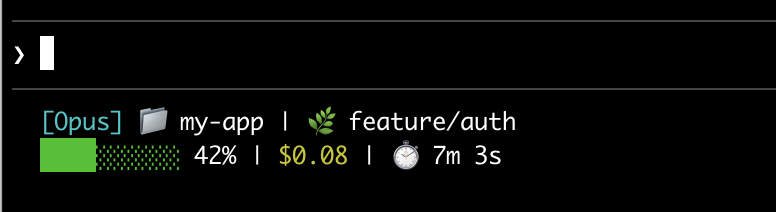
This page walks through setting up a basic status line, explains how the data flows from Claude Code to your script, lists all the fields you can display, and provides ready-to-use examples for common patterns like git status, cost tracking, and progress bars.
Set up a status line
Use the /statusline command to have Claude Code generate a script for you, or manually create a script and add it to your settings.
Use the /statusline command
The /statusline command accepts natural language instructions describing what you want displayed. Claude Code generates a script file in ~/.claude/ and updates your settings automatically:
/statusline show model name and context percentage with a progress bar
Manually configure a status line
Add a statusLine field to your user settings (~/.claude/settings.json, where ~ is your home directory) or project settings. Set type to "command" and point command to a script path or an inline shell command. For a full walkthrough of creating a script, see Build a status line step by step.
{
  "statusLine": {
    "type": "command",
    "command": "~/.claude/statusline.sh",
    "padding": 2
  }
}
The command field runs in a shell, so you can also use inline commands instead of a script file. This example uses jq to parse the JSON input and display the model name and context percentage:
{
  "statusLine": {
    "type": "command",
    "command": "jq -r '\"[\\(.model.display_name)] \\(.context_window.used_percentage // 0)% context\"'"
  }
}
The optional padding field adds extra horizontal spacing (in characters) to the status line content. Defaults to 0. This padding is in addition to the interface's built-in spacing, so it controls relative indentation rather than absolute distance from the terminal edge.
The optional refreshInterval field re-runs your command every N seconds in addition to the event-driven updates. The minimum is 1. Set this when your status line shows time-based data such as a clock, or when background subagents change git state while the main session is idle. Leave it unset to run only on events.
Disable the status line
Run /statusline and ask it to remove or clear your status line (e.g., /statusline delete, /statusline clear, /statusline remove it). You can also manually delete the statusLine field from your settings.json.
Build a status line step by step
This walkthrough shows what's happening under the hood by manually creating a status line that displays the current model, working directory, and context window usage percentage.
Note
Running /statusline with a description of what you want configures all of this for you automatically.
These examples use Bash scripts, which work on macOS and Linux. On Windows, see Windows configuration for PowerShell and Git Bash examples.
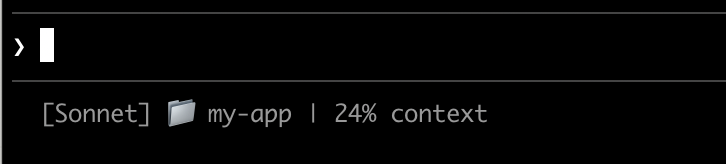
Claude Code sends JSON data to your script via stdin. This script uses jq, a command-line JSON parser you may need to install, to extract the model name, directory, and context percentage, then prints a formatted line.
Save this to ~/.claude/statusline.sh (where ~ is your home directory, such as /Users/username on macOS or /home/username on Linux):
#!/bin/bash
# Read JSON data that Claude Code sends to stdin
input=$(cat)

# Extract fields using jq
MODEL=$(echo "$input" | jq -r '.model.display_name')
DIR=$(echo "$input" | jq -r '.workspace.current_dir')
# The "// 0" provides a fallback if the field is null
PCT=$(echo "$input" | jq -r '.context_window.used_percentage // 0' | cut -d. -f1)

# Output the status line - ${DIR##*/} extracts just the folder name
echo "[$MODEL] 📁 ${DIR##*/} | ${PCT}% context"
Mark the script as executable so your shell can run it:
chmod +x ~/.claude/statusline.sh
Tell Claude Code to run your script as the status line. Add this configuration to ~/.claude/settings.json, which sets type to "command" (meaning "run this shell command") and points command to your script:
{
  "statusLine": {
    "type": "command",
    "command": "~/.claude/statusline.sh"
  }
}
Your status line appears at the bottom of the interface. Settings reload automatically, but changes won't appear until your next interaction with Claude Code.
How status lines work
Claude Code runs your script and pipes JSON session data to it via stdin. Your script reads the JSON, extracts what it needs, and prints text to stdout. Claude Code displays whatever your script prints.
When it updates
Your script runs after each new assistant message, when the permission mode changes, or when vim mode toggles. Updates are debounced at 300ms, meaning rapid changes batch together and your script runs once things settle. If a new update triggers while your script is still running, the in-flight execution is cancelled. If you edit your script, the changes won't appear until your next interaction with Claude Code triggers an update.
These triggers can go quiet when the main session is idle, for example while a coordinator waits on background subagents. To keep time-based or externally-sourced segments current during idle periods, set refreshInterval to also re-run the command on a fixed timer.
What your script can output
- Multiple lines: each
echoorprintstatement displays as a separate row. See the multi-line example. - Colors: use ANSI escape codes like
\033[32mfor green (terminal must support them). See the git status example. - Links: use OSC 8 escape sequences to make text clickable (Cmd+click on macOS, Ctrl+click on Windows/Linux). Requires a terminal that supports hyperlinks like iTerm2, Kitty, or WezTerm. See the clickable links example.
Note
The status line runs locally and does not consume API tokens. It temporarily hides during certain UI interactions, including autocomplete suggestions, the help menu, and permission prompts.
Available data
Claude Code sends the following JSON fields to your script via stdin:
| Field | Description |
|---|---|
model.id, model.display_name |
Current model identifier and display name |
cwd, workspace.current_dir |
Current working directory. Both fields contain the same value; workspace.current_dir is preferred for consistency with workspace.project_dir. |
workspace.project_dir |
Directory where Claude Code was launched, which may differ from cwd if the working directory changes during a session |
workspace.added_dirs |
Additional directories added via /add-dir or --add-dir. Empty array if none have been added |
workspace.git_worktree |
Git worktree name when the current directory is inside a linked worktree created with git worktree add. Absent in the main working tree. Populated for any git worktree, unlike worktree.* which applies only to --worktree sessions |
cost.total_cost_usd |
Total session cost in USD |
cost.total_duration_ms |
Total wall-clock time since the session started, in milliseconds |
cost.total_api_duration_ms |
Total time spent waiting for API responses in milliseconds |
cost.total_lines_added, cost.total_lines_removed |
Lines of code changed |
context_window.total_input_tokens, context_window.total_output_tokens |
Cumulative token counts across the session |
context_window.context_window_size |
Maximum context window size in tokens. 200000 by default, or 1000000 for models with extended context. |
context_window.used_percentage |
Pre-calculated percentage of context window used |
context_window.remaining_percentage |
Pre-calculated percentage of context window remaining |
context_window.current_usage |
Token counts from the last API call, described in context window fields |
exceeds_200k_tokens |
Whether the total token count (input, cache, and output tokens combined) from the most recent API response exceeds 200k. This is a fixed threshold regardless of actual context window size. |
rate_limits.five_hour.used_percentage, rate_limits.seven_day.used_percentage |
Percentage of the 5-hour or 7-day rate limit consumed, from 0 to 100 |
rate_limits.five_hour.resets_at, rate_limits.seven_day.resets_at |
Unix epoch seconds when the 5-hour or 7-day rate limit window resets |
session_id |
Unique session identifier |
session_name |
Custom session name set with the --name flag or /rename. Absent if no custom name has been set |
transcript_path |
Path to conversation transcript file |
version |
Claude Code version |
output_style.name |
Name of the current output style |
vim.mode |
Current vim mode (NORMAL or INSERT) when vim mode is enabled |
agent.name |
Agent name when running with the --agent flag or agent settings configured |
worktree.name |
Name of the active worktree. Present only during --worktree sessions |
worktree.path |
Absolute path to the worktree directory |
worktree.branch |
Git branch name for the worktree (for example, "worktree-my-feature"). Absent for hook-based worktrees |
worktree.original_cwd |
The directory Claude was in before entering the worktree |
worktree.original_branch |
Git branch checked out before entering the worktree. Absent for hook-based worktrees |
Full JSON schema
Your status line command receives this JSON structure via stdin:
{
  "cwd": "/current/working/directory",
  "session_id": "abc123...",
  "session_name": "my-session",
  "transcript_path": "/path/to/transcript.jsonl",
  "model": {
    "id": "claude-opus-4-6",
    "display_name": "Opus"
  },
  "workspace": {
    "current_dir": "/current/working/directory",
    "project_dir": "/original/project/directory",
    "added_dirs": [],
    "git_worktree": "feature-xyz"
  },
  "version": "2.1.90",
  "output_style": {
    "name": "default"
  },
  "cost": {
    "total_cost_usd": 0.01234,
    "total_duration_ms": 45000,
    "total_api_duration_ms": 2300,
    "total_lines_added": 156,
    "total_lines_removed": 23
  },
  "context_window": {
    "total_input_tokens": 15234,
    "total_output_tokens": 4521,
    "context_window_size": 200000,
    "used_percentage": 8,
    "remaining_percentage": 92,
    "current_usage": {
      "input_tokens": 8500,
      "output_tokens": 1200,
      "cache_creation_input_tokens": 5000,
      "cache_read_input_tokens": 2000
    }
  },
  "exceeds_200k_tokens": false,
  "rate_limits": {
    "five_hour": {
      "used_percentage": 23.5,
      "resets_at": 1738425600
    },
    "seven_day": {
      "used_percentage": 41.2,
      "resets_at": 1738857600
    }
  },
  "vim": {
    "mode": "NORMAL"
  },
  "agent": {
    "name": "security-reviewer"
  },
  "worktree": {
    "name": "my-feature",
    "path": "/path/to/.claude/worktrees/my-feature",
    "branch": "worktree-my-feature",
    "original_cwd": "/path/to/project",
    "original_branch": "main"
  }
}
Fields that may be absent (not present in JSON):
session_name: appears only when a custom name has been set with--nameor/renameworkspace.git_worktree: appears only when the current directory is inside a linked git worktreevim: appears only when vim mode is enabledagent: appears only when running with the--agentflag or agent settings configuredworktree: appears only during--worktreesessions. When present,branchandoriginal_branchmay also be absent for hook-based worktreesrate_limits: appears only for Claude.ai subscribers (Pro/Max) after the first API response in the session. Each window (five_hour,seven_day) may be independently absent. Usejq -r '.rate_limits.five_hour.used_percentage // empty'to handle absence gracefully.
Fields that may be null:
context_window.current_usage:nullbefore the first API call in a sessioncontext_window.used_percentage,context_window.remaining_percentage: may benullearly in the session
Handle missing fields with conditional access and null values with fallback defaults in your scripts.
Context window fields
The context_window object provides two ways to track context usage:
- Cumulative totals (
total_input_tokens,total_output_tokens): sum of all tokens across the entire session, useful for tracking total consumption - Current usage (
current_usage): token counts from the most recent API call, use this for accurate context percentage since it reflects the actual context state
The current_usage object contains:
input_tokens: input tokens in current contextoutput_tokens: output tokens generatedcache_creation_input_tokens: tokens written to cachecache_read_input_tokens: tokens read from cache
The used_percentage field is calculated from input tokens only: input_tokens + cache_creation_input_tokens + cache_read_input_tokens. It does not include output_tokens.
If you calculate context percentage manually from current_usage, use the same input-only formula to match used_percentage.
The current_usage object is null before the first API call in a session.
Examples
These examples show common status line patterns. To use any example:
- Save the script to a file like
~/.claude/statusline.sh(or.py/.js) - Make it executable:
chmod +x ~/.claude/statusline.sh - Add the path to your settings
The Bash examples use jq to parse JSON. Python and Node.js have built-in JSON parsing.
Context window usage
Display the current model and context window usage with a visual progress bar. Each script reads JSON from stdin, extracts the used_percentage field, and builds a 10-character bar where filled blocks (▓) represent usage:
#!/bin/bash
# Read all of stdin into a variable
input=$(cat)

# Extract fields with jq, "// 0" provides fallback for null
MODEL=$(echo "$input" | jq -r '.model.display_name')
PCT=$(echo "$input" | jq -r '.context_window.used_percentage // 0' | cut -d. -f1)

# Build progress bar: printf -v creates a run of spaces, then
# ${var// /▓} replaces each space with a block character
BAR_WIDTH=10
FILLED=$((PCT * BAR_WIDTH / 100))
EMPTY=$((BAR_WIDTH - FILLED))
BAR=""
[ "$FILLED" -gt 0 ] && printf -v FILL "%${FILLED}s" && BAR="${FILL// /▓}"
[ "$EMPTY" -gt 0 ] && printf -v PAD "%${EMPTY}s" && BAR="${BAR}${PAD// /░}"

echo "[$MODEL] $BAR $PCT%"
#!/usr/bin/env python3
import json, sys

# json.load reads and parses stdin in one step
data = json.load(sys.stdin)
model = data['model']['display_name']
# "or 0" handles null values
pct = int(data.get('context_window', {}).get('used_percentage', 0) or 0)

# String multiplication builds the bar
filled = pct * 10 // 100
bar = '▓' * filled + '░' * (10 - filled)

print(f"[{model}] {bar} {pct}%")
#!/usr/bin/env node
// Node.js reads stdin asynchronously with events
let input = '';
process.stdin.on('data', chunk => input += chunk);
process.stdin.on('end', () => {
    const data = JSON.parse(input);
    const model = data.model.display_name;
    // Optional chaining (?.) safely handles null fields
    const pct = Math.floor(data.context_window?.used_percentage || 0);

    // String.repeat() builds the bar
    const filled = Math.floor(pct * 10 / 100);
    const bar = '▓'.repeat(filled) + '░'.repeat(10 - filled);

    console.log(`[${model}] ${bar} ${pct}%`);
});
Git status with colors
Show git branch with color-coded indicators for staged and modified files. This script uses ANSI escape codes for terminal colors: \033[32m is green, \033[33m is yellow, and \033[0m resets to default.
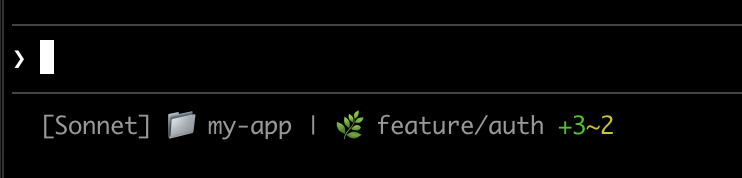
Each script checks if the current directory is a git repository, counts staged and modified files, and displays color-coded indicators:
#!/bin/bash
input=$(cat)

MODEL=$(echo "$input" | jq -r '.model.display_name')
DIR=$(echo "$input" | jq -r '.workspace.current_dir')

GREEN='\033[32m'
YELLOW='\033[33m'
RESET='\033[0m'

if git rev-parse --git-dir > /dev/null 2>&1; then
    BRANCH=$(git branch --show-current 2>/dev/null)
    STAGED=$(git diff --cached --numstat 2>/dev/null | wc -l | tr -d ' ')
    MODIFIED=$(git diff --numstat 2>/dev/null | wc -l | tr -d ' ')

    GIT_STATUS=""
    [ "$STAGED" -gt 0 ] && GIT_STATUS="${GREEN}+${STAGED}${RESET}"
    [ "$MODIFIED" -gt 0 ] && GIT_STATUS="${GIT_STATUS}${YELLOW}~${MODIFIED}${RESET}"

    echo -e "[$MODEL] 📁 ${DIR##*/} | 🌿 $BRANCH $GIT_STATUS"
else
    echo "[$MODEL] 📁 ${DIR##*/}"
fi
#!/usr/bin/env python3
import json, sys, subprocess, os

data = json.load(sys.stdin)
model = data['model']['display_name']
directory = os.path.basename(data['workspace']['current_dir'])

GREEN, YELLOW, RESET = '\033[32m', '\033[33m', '\033[0m'

try:
    subprocess.check_output(['git', 'rev-parse', '--git-dir'], stderr=subprocess.DEVNULL)
    branch = subprocess.check_output(['git', 'branch', '--show-current'], text=True).strip()
    staged_output = subprocess.check_output(['git', 'diff', '--cached', '--numstat'], text=True).strip()
    modified_output = subprocess.check_output(['git', 'diff', '--numstat'], text=True).strip()
    staged = len(staged_output.split('\n')) if staged_output else 0
    modified = len(modified_output.split('\n')) if modified_output else 0

    git_status = f"{GREEN}+{staged}{RESET}" if staged else ""
    git_status += f"{YELLOW}~{modified}{RESET}" if modified else ""

    print(f"[{model}] 📁 {directory} | 🌿 {branch} {git_status}")
except:
    print(f"[{model}] 📁 {directory}")
#!/usr/bin/env node
const { execSync } = require('child_process');
const path = require('path');

let input = '';
process.stdin.on('data', chunk => input += chunk);
process.stdin.on('end', () => {
    const data = JSON.parse(input);
    const model = data.model.display_name;
    const dir = path.basename(data.workspace.current_dir);

    const GREEN = '\x1b[32m', YELLOW = '\x1b[33m', RESET = '\x1b[0m';

    try {
        execSync('git rev-parse --git-dir', { stdio: 'ignore' });
        const branch = execSync('git branch --show-current', { encoding: 'utf8' }).trim();
        const staged = execSync('git diff --cached --numstat', { encoding: 'utf8' }).trim().split('\n').filter(Boolean).length;
        const modified = execSync('git diff --numstat', { encoding: 'utf8' }).trim().split('\n').filter(Boolean).length;

        let gitStatus = staged ? `${GREEN}+${staged}${RESET}` : '';
        gitStatus += modified ? `${YELLOW}~${modified}${RESET}` : '';

        console.log(`[${model}] 📁 ${dir} | 🌿 ${branch} ${gitStatus}`);
    } catch {
        console.log(`[${model}] 📁 ${dir}`);
    }
});
Cost and duration tracking
Track your session's API costs and elapsed time. The cost.total_cost_usd field accumulates the cost of all API calls in the current session. The cost.total_duration_ms field measures total elapsed time since the session started, while cost.total_api_duration_ms tracks only the time spent waiting for API responses.
Each script formats cost as currency and converts milliseconds to minutes and seconds:
#!/bin/bash
input=$(cat)

MODEL=$(echo "$input" | jq -r '.model.display_name')
COST=$(echo "$input" | jq -r '.cost.total_cost_usd // 0')
DURATION_MS=$(echo "$input" | jq -r '.cost.total_duration_ms // 0')

COST_FMT=$(printf '$%.2f' "$COST")
DURATION_SEC=$((DURATION_MS / 1000))
MINS=$((DURATION_SEC / 60))
SECS=$((DURATION_SEC % 60))

echo "[$MODEL] 💰 $COST_FMT | ⏱️ ${MINS}m ${SECS}s"
#!/usr/bin/env python3
import json, sys

data = json.load(sys.stdin)
model = data['model']['display_name']
cost = data.get('cost', {}).get('total_cost_usd', 0) or 0
duration_ms = data.get('cost', {}).get('total_duration_ms', 0) or 0

duration_sec = duration_ms // 1000
mins, secs = duration_sec // 60, duration_sec % 60

print(f"[{model}] 💰 ${cost:.2f} | ⏱️ {mins}m {secs}s")
#!/usr/bin/env node
let input = '';
process.stdin.on('data', chunk => input += chunk);
process.stdin.on('end', () => {
    const data = JSON.parse(input);
    const model = data.model.display_name;
    const cost = data.cost?.total_cost_usd || 0;
    const durationMs = data.cost?.total_duration_ms || 0;

    const durationSec = Math.floor(durationMs / 1000);
    const mins = Math.floor(durationSec / 60);
    const secs = durationSec % 60;

    console.log(`[${model}] 💰 $${cost.toFixed(2)} | ⏱️ ${mins}m ${secs}s`);
});
Display multiple lines
Your script can output multiple lines to create a richer display. Each echo statement produces a separate row in the status area.
This example combines several techniques: threshold-based colors (green under 70%, yellow 70-89%, red 90%+), a progress bar, and git branch info. Each print or echo statement creates a separate row:
#!/bin/bash
input=$(cat)

MODEL=$(echo "$input" | jq -r '.model.display_name')
DIR=$(echo "$input" | jq -r '.workspace.current_dir')
COST=$(echo "$input" | jq -r '.cost.total_cost_usd // 0')
PCT=$(echo "$input" | jq -r '.context_window.used_percentage // 0' | cut -d. -f1)
DURATION_MS=$(echo "$input" | jq -r '.cost.total_duration_ms // 0')

CYAN='\033[36m'; GREEN='\033[32m'; YELLOW='\033[33m'; RED='\033[31m'; RESET='\033[0m'

# Pick bar color based on context usage
if [ "$PCT" -ge 90 ]; then BAR_COLOR="$RED"
elif [ "$PCT" -ge 70 ]; then BAR_COLOR="$YELLOW"
else BAR_COLOR="$GREEN"; fi

FILLED=$((PCT / 10)); EMPTY=$((10 - FILLED))
printf -v FILL "%${FILLED}s"; printf -v PAD "%${EMPTY}s"
BAR="${FILL// /█}${PAD// /░}"

MINS=$((DURATION_MS / 60000)); SECS=$(((DURATION_MS % 60000) / 1000))

BRANCH=""
git rev-parse --git-dir > /dev/null 2>&1 && BRANCH=" | 🌿 $(git branch --show-current 2>/dev/null)"

echo -e "${CYAN}[$MODEL]${RESET} 📁 ${DIR##*/}$BRANCH"
COST_FMT=$(printf '$%.2f' "$COST")
echo -e "${BAR_COLOR}${BAR}${RESET} ${PCT}% | ${YELLOW}${COST_FMT}${RESET} | ⏱️ ${MINS}m ${SECS}s"
#!/usr/bin/env python3
import json, sys, subprocess, os

data = json.load(sys.stdin)
model = data['model']['display_name']
directory = os.path.basename(data['workspace']['current_dir'])
cost = data.get('cost', {}).get('total_cost_usd', 0) or 0
pct = int(data.get('context_window', {}).get('used_percentage', 0) or 0)
duration_ms = data.get('cost', {}).get('total_duration_ms', 0) or 0

CYAN, GREEN, YELLOW, RED, RESET = '\033[36m', '\033[32m', '\033[33m', '\033[31m', '\033[0m'

bar_color = RED if pct >= 90 else YELLOW if pct >= 70 else GREEN
filled = pct // 10
bar = '█' * filled + '░' * (10 - filled)

mins, secs = duration_ms // 60000, (duration_ms % 60000) // 1000

try:
    branch = subprocess.check_output(['git', 'branch', '--show-current'], text=True, stderr=subprocess.DEVNULL).strip()
    branch = f" | 🌿 {branch}" if branch else ""
except:
    branch = ""

print(f"{CYAN}[{model}]{RESET} 📁 {directory}{branch}")
print(f"{bar_color}{bar}{RESET} {pct}% | {YELLOW}${cost:.2f}{RESET} | ⏱️ {mins}m {secs}s")
#!/usr/bin/env node
const { execSync } = require('child_process');
const path = require('path');

let input = '';
process.stdin.on('data', chunk => input += chunk);
process.stdin.on('end', () => {
    const data = JSON.parse(input);
    const model = data.model.display_name;
    const dir = path.basename(data.workspace.current_dir);
    const cost = data.cost?.total_cost_usd || 0;
    const pct = Math.floor(data.context_window?.used_percentage || 0);
    const durationMs = data.cost?.total_duration_ms || 0;

    const CYAN = '\x1b[36m', GREEN = '\x1b[32m', YELLOW = '\x1b[33m', RED = '\x1b[31m', RESET = '\x1b[0m';

    const barColor = pct >= 90 ? RED : pct >= 70 ? YELLOW : GREEN;
    const filled = Math.floor(pct / 10);
    const bar = '█'.repeat(filled) + '░'.repeat(10 - filled);

    const mins = Math.floor(durationMs / 60000);
    const secs = Math.floor((durationMs % 60000) / 1000);

    let branch = '';
    try {
        branch = execSync('git branch --show-current', { encoding: 'utf8', stdio: ['pipe', 'pipe', 'ignore'] }).trim();
        branch = branch ? ` | 🌿 ${branch}` : '';
    } catch {}

    console.log(`${CYAN}[${model}]${RESET} 📁 ${dir}${branch}`);
    console.log(`${barColor}${bar}${RESET} ${pct}% | ${YELLOW}$${cost.toFixed(2)}${RESET} | ⏱️ ${mins}m ${secs}s`);
});
Clickable links
This example creates a clickable link to your GitHub repository. It reads the git remote URL, converts SSH format to HTTPS with sed, and wraps the repo name in OSC 8 escape codes. Hold Cmd (macOS) or Ctrl (Windows/Linux) and click to open the link in your browser.
Each script gets the git remote URL, converts SSH format to HTTPS, and wraps the repo name in OSC 8 escape codes. The Bash version uses printf '%b' which interprets backslash escapes more reliably than echo -e across different shells:
#!/bin/bash
input=$(cat)

MODEL=$(echo "$input" | jq -r '.model.display_name')

# Convert git SSH URL to HTTPS
REMOTE=$(git remote get-url origin 2>/dev/null | sed 's/[email protected]:/https:\/\/github.com\//' | sed 's/\.git$//')

if [ -n "$REMOTE" ]; then
    REPO_NAME=$(basename "$REMOTE")
    # OSC 8 format: \e]8;;URL\a then TEXT then \e]8;;\a
    # printf %b interprets escape sequences reliably across shells
    printf '%b' "[$MODEL] 🔗 \e]8;;${REMOTE}\a${REPO_NAME}\e]8;;\a\n"
else
    echo "[$MODEL]"
fi
#!/usr/bin/env python3
import json, sys, subprocess, re, os

data = json.load(sys.stdin)
model = data['model']['display_name']

# Get git remote URL
try:
    remote = subprocess.check_output(
        ['git', 'remote', 'get-url', 'origin'],
        stderr=subprocess.DEVNULL, text=True
    ).strip()
    # Convert SSH to HTTPS format
    remote = re.sub(r'^git@github\.com:', 'https://github.com/', remote)
    remote = re.sub(r'\.git$', '', remote)
    repo_name = os.path.basename(remote)
    # OSC 8 escape sequences
    link = f"\033]8;;{remote}\a{repo_name}\033]8;;\a"
    print(f"[{model}] 🔗 {link}")
except:
    print(f"[{model}]")
#!/usr/bin/env node
const { execSync } = require('child_process');
const path = require('path');

let input = '';
process.stdin.on('data', chunk => input += chunk);
process.stdin.on('end', () => {
    const data = JSON.parse(input);
    const model = data.model.display_name;

    try {
        let remote = execSync('git remote get-url origin', { encoding: 'utf8', stdio: ['pipe', 'pipe', 'ignore'] }).trim();
        // Convert SSH to HTTPS format
        remote = remote.replace(/^git@github\.com:/, 'https://github.com/').replace(/\.git$/, '');
        const repoName = path.basename(remote);
        // OSC 8 escape sequences
        const link = `\x1b]8;;${remote}\x07${repoName}\x1b]8;;\x07`;
        console.log(`[${model}] 🔗 ${link}`);
    } catch {
        console.log(`[${model}]`);
    }
});
Rate limit usage
Display Claude.ai subscription rate limit usage in the status line. The rate_limits object contains five_hour (5-hour rolling window) and seven_day (weekly) windows. Each window provides used_percentage (0-100) and resets_at (Unix epoch seconds when the window resets).
This field is only present for Claude.ai subscribers (Pro/Max) after the first API response. Each script handles the absent field gracefully:
#!/bin/bash
input=$(cat)

MODEL=$(echo "$input" | jq -r '.model.display_name')
# "// empty" produces no output when rate_limits is absent
FIVE_H=$(echo "$input" | jq -r '.rate_limits.five_hour.used_percentage // empty')
WEEK=$(echo "$input" | jq -r '.rate_limits.seven_day.used_percentage // empty')

LIMITS=""
[ -n "$FIVE_H" ] && LIMITS="5h: $(printf '%.0f' "$FIVE_H")%"
[ -n "$WEEK" ] && LIMITS="${LIMITS:+$LIMITS }7d: $(printf '%.0f' "$WEEK")%"

[ -n "$LIMITS" ] && echo "[$MODEL] | $LIMITS" || echo "[$MODEL]"
#!/usr/bin/env python3
import json, sys

data = json.load(sys.stdin)
model = data['model']['display_name']

parts = []
rate = data.get('rate_limits', {})
five_h = rate.get('five_hour', {}).get('used_percentage')
week = rate.get('seven_day', {}).get('used_percentage')

if five_h is not None:
    parts.append(f"5h: {five_h:.0f}%")
if week is not None:
    parts.append(f"7d: {week:.0f}%")

if parts:
    print(f"[{model}] | {' '.join(parts)}")
else:
    print(f"[{model}]")
#!/usr/bin/env node
let input = '';
process.stdin.on('data', chunk => input += chunk);
process.stdin.on('end', () => {
    const data = JSON.parse(input);
    const model = data.model.display_name;

    const parts = [];
    const fiveH = data.rate_limits?.five_hour?.used_percentage;
    const week = data.rate_limits?.seven_day?.used_percentage;

    if (fiveH != null) parts.push(`5h: ${Math.round(fiveH)}%`);
    if (week != null) parts.push(`7d: ${Math.round(week)}%`);

    console.log(parts.length ? `[${model}] | ${parts.join(' ')}` : `[${model}]`);
});
Cache expensive operations
Your status line script runs frequently during active sessions. Commands like git status or git diff can be slow, especially in large repositories. This example caches git information to a temp file and only refreshes it every 5 seconds.
The cache filename needs to be stable across status line invocations within a session, but unique across sessions so concurrent sessions in different repositories don't read each other's cached git state. Process-based identifiers like $$, os.getpid, or process.pid change on every invocation and defeat the cache. Use the session_id from the JSON input instead: it's stable for the lifetime of a session and unique per session.
Each script checks if the cache file is missing or older than 5 seconds before running git commands:
#!/bin/bash
input=$(cat)

MODEL=$(echo "$input" | jq -r '.model.display_name')
DIR=$(echo "$input" | jq -r '.workspace.current_dir')
SESSION_ID=$(echo "$input" | jq -r '.session_id')

CACHE_FILE="/tmp/statusline-git-cache-$SESSION_ID"
CACHE_MAX_AGE=5  # seconds

cache_is_stale() {
    [ ! -f "$CACHE_FILE" ] || \
    # stat -f %m is macOS, stat -c %Y is Linux
    [ $(($(date +%s) - $(stat -f %m "$CACHE_FILE" 2>/dev/null || stat -c %Y "$CACHE_FILE" 2>/dev/null || echo 0))) -gt $CACHE_MAX_AGE ]
}

if cache_is_stale; then
    if git rev-parse --git-dir > /dev/null 2>&1; then
        BRANCH=$(git branch --show-current 2>/dev/null)
        STAGED=$(git diff --cached --numstat 2>/dev/null | wc -l | tr -d ' ')
        MODIFIED=$(git diff --numstat 2>/dev/null | wc -l | tr -d ' ')
        echo "$BRANCH|$STAGED|$MODIFIED" > "$CACHE_FILE"
    else
        echo "||" > "$CACHE_FILE"
    fi
fi

IFS='|' read -r BRANCH STAGED MODIFIED < "$CACHE_FILE"

if [ -n "$BRANCH" ]; then
    echo "[$MODEL] 📁 ${DIR##*/} | 🌿 $BRANCH +$STAGED ~$MODIFIED"
else
    echo "[$MODEL] 📁 ${DIR##*/}"
fi
#!/usr/bin/env python3
import json, sys, subprocess, os, time

data = json.load(sys.stdin)
model = data['model']['display_name']
directory = os.path.basename(data['workspace']['current_dir'])
session_id = data['session_id']

CACHE_FILE = f"/tmp/statusline-git-cache-{session_id}"
CACHE_MAX_AGE = 5  # seconds

def cache_is_stale():
    if not os.path.exists(CACHE_FILE):
        return True
    return time.time() - os.path.getmtime(CACHE_FILE) > CACHE_MAX_AGE

if cache_is_stale():
    try:
        subprocess.check_output(['git', 'rev-parse', '--git-dir'], stderr=subprocess.DEVNULL)
        branch = subprocess.check_output(['git', 'branch', '--show-current'], text=True).strip()
        staged = subprocess.check_output(['git', 'diff', '--cached', '--numstat'], text=True).strip()
        modified = subprocess.check_output(['git', 'diff', '--numstat'], text=True).strip()
        staged_count = len(staged.split('\n')) if staged else 0
        modified_count = len(modified.split('\n')) if modified else 0
        with open(CACHE_FILE, 'w') as f:
            f.write(f"{branch}|{staged_count}|{modified_count}")
    except:
        with open(CACHE_FILE, 'w') as f:
            f.write("||")

with open(CACHE_FILE) as f:
    branch, staged, modified = f.read().strip().split('|')

if branch:
    print(f"[{model}] 📁 {directory} | 🌿 {branch} +{staged} ~{modified}")
else:
    print(f"[{model}] 📁 {directory}")
#!/usr/bin/env node
const { execSync } = require('child_process');
const fs = require('fs');
const path = require('path');

let input = '';
process.stdin.on('data', chunk => input += chunk);
process.stdin.on('end', () => {
    const data = JSON.parse(input);
    const model = data.model.display_name;
    const dir = path.basename(data.workspace.current_dir);
    const sessionId = data.session_id;

    const CACHE_FILE = `/tmp/statusline-git-cache-${sessionId}`;
    const CACHE_MAX_AGE = 5; // seconds

    const cacheIsStale = () => {
        if (!fs.existsSync(CACHE_FILE)) return true;
        return (Date.now() / 1000) - fs.statSync(CACHE_FILE).mtimeMs / 1000 > CACHE_MAX_AGE;
    };

    if (cacheIsStale()) {
        try {
            execSync('git rev-parse --git-dir', { stdio: 'ignore' });
            const branch = execSync('git branch --show-current', { encoding: 'utf8' }).trim();
            const staged = execSync('git diff --cached --numstat', { encoding: 'utf8' }).trim().split('\n').filter(Boolean).length;
            const modified = execSync('git diff --numstat', { encoding: 'utf8' }).trim().split('\n').filter(Boolean).length;
            fs.writeFileSync(CACHE_FILE, `${branch}|${staged}|${modified}`);
        } catch {
            fs.writeFileSync(CACHE_FILE, '||');
        }
    }

    const [branch, staged, modified] = fs.readFileSync(CACHE_FILE, 'utf8').trim().split('|');

    if (branch) {
        console.log(`[${model}] 📁 ${dir} | 🌿 ${branch} +${staged} ~${modified}`);
    } else {
        console.log(`[${model}] 📁 ${dir}`);
    }
});
Windows configuration
On Windows, Claude Code runs status line commands through Git Bash. You can invoke PowerShell from that shell:
{
  "statusLine": {
    "type": "command",
    "command": "powershell -NoProfile -File C:/Users/username/.claude/statusline.ps1"
  }
}
$input_json = $input | Out-String | ConvertFrom-Json
$cwd = $input_json.cwd
$model = $input_json.model.display_name
$used = $input_json.context_window.used_percentage
$dirname = Split-Path $cwd -Leaf

if ($used) {
    Write-Host "$dirname [$model] ctx: $used%"
} else {
    Write-Host "$dirname [$model]"
}
Or run a Bash script directly:
{
  "statusLine": {
    "type": "command",
    "command": "~/.claude/statusline.sh"
  }
}
#!/usr/bin/env bash
input=$(cat)
cwd=$(echo "$input" | grep -o '"cwd":"[^"]*"' | cut -d'"' -f4)
model=$(echo "$input" | grep -o '"display_name":"[^"]*"' | cut -d'"' -f4)
dirname="${cwd##*[/\\]}"
echo "$dirname [$model]"
Subagent status lines
The subagentStatusLine setting renders a custom row body for each subagent shown in the agent panel below the prompt. Use it to replace the default name · description · token count row with your own formatting.
{
  "subagentStatusLine": {
    "type": "command",
    "command": "~/.claude/subagent-statusline.sh"
  }
}
The command runs once per refresh tick with all visible subagent rows passed as a single JSON object on stdin. The input includes the base hook fields plus columns (the usable row width) and a tasks array, where each task has id, name, type, status, description, label, startTime, tokenCount, tokenSamples, and cwd.
Write one JSON line to stdout per row you want to override, in the form {"id": "<task id>", "content": "<row body>"}. The content string is rendered as-is, including ANSI colors and OSC 8 hyperlinks. Omit a task's id to keep the default rendering for that row; emit an empty content string to hide it.
The same trust and disableAllHooks gates that apply to statusLine apply here. Plugins can ship a default subagentStatusLine in their settings.json.
Tips
- Test with mock input:
echo '{"model":{"display_name":"Opus"},"workspace":{"current_dir":"/home/user/project"},"context_window":{"used_percentage":25},"session_id":"test-session-abc"}' | ./statusline.sh - Keep output short: the status bar has limited width, so long output may get truncated or wrap awkwardly
- Cache slow operations: your script runs frequently during active sessions, so commands like
git statuscan cause lag. See the caching example for how to handle this.
Community projects like ccstatusline and starship-claude provide pre-built configurations with themes and additional features.
Troubleshooting
Status line not appearing
- Verify your script is executable:
chmod +x ~/.claude/statusline.sh - Check that your script outputs to stdout, not stderr
- Run your script manually to verify it produces output
- If
disableAllHooksis set totruein your settings, the status line is also disabled. Remove this setting or set it tofalseto re-enable. - Run
claude --debugto log the exit code and stderr from the first status line invocation in a session - Ask Claude to read your settings file and execute the
statusLinecommand directly to surface errors
Status line shows -- or empty values
- Fields may be
nullbefore the first API response completes - Handle null values in your script with fallbacks such as
// 0in jq - Restart Claude Code if values remain empty after multiple messages
Context percentage shows unexpected values
- Use
used_percentagefor accurate context state rather than cumulative totals - The
total_input_tokensandtotal_output_tokensare cumulative across the session and may exceed the context window size - Context percentage may differ from
/contextoutput due to when each is calculated
OSC 8 links not clickable
Verify your terminal supports OSC 8 hyperlinks (iTerm2, Kitty, WezTerm)
Terminal.app does not support clickable links
If link text appears but isn't clickable, Claude Code may not have detected hyperlink support in your terminal. This commonly affects Windows Terminal and other emulators not in the auto-detection list. Set the
FORCE_HYPERLINKenvironment variable to override detection before launching Claude Code:FORCE_HYPERLINK=1 claudeIn PowerShell, set the variable in the current session first:
$env:FORCE_HYPERLINK = "1"; claudeSSH and tmux sessions may strip OSC sequences depending on configuration
If escape sequences appear as literal text like
\e]8;;, useprintf '%b'instead ofecho -efor more reliable escape handling
Display glitches with escape sequences
- Complex escape sequences (ANSI colors, OSC 8 links) can occasionally cause garbled output if they overlap with other UI updates
- If you see corrupted text, try simplifying your script to plain text output
- Multi-line status lines with escape codes are more prone to rendering issues than single-line plain text
Workspace trust required
- The status line command only runs if you've accepted the workspace trust dialog for the current directory. Because
statusLineexecutes a shell command, it requires the same trust acceptance as hooks and other shell-executing settings. - If trust isn't accepted, you'll see the notification
statusline skipped · restart to fixinstead of your status line output. Restart Claude Code and accept the trust prompt to enable it.
Script errors or hangs
- Scripts that exit with non-zero codes or produce no output cause the status line to go blank
- Slow scripts block the status line from updating until they complete. Keep scripts fast to avoid stale output.
- If a new update triggers while a slow script is running, the in-flight script is cancelled
- Test your script independently with mock input before configuring it
Notifications share the status line row
- System notifications like MCP server errors and auto-updates display on the right side of the same row as your status line. Transient notifications such as the context-low warning also cycle through this area.
- Enabling verbose mode adds a token counter to this area
- On narrow terminals, these notifications may truncate your status line output
Customize keyboard shortcuts
Customize keyboard shortcuts in Claude Code with a keybindings configuration file.
Note
Customizable keyboard shortcuts require Claude Code v2.1.18 or later. Check your version with claude --version.
Claude Code supports customizable keyboard shortcuts. Run /keybindings to create or open your configuration file at ~/.claude/keybindings.json.
Configuration file
The keybindings configuration file is an object with a bindings array. Each block specifies a context and a map of keystrokes to actions.
Note
Changes to the keybindings file are automatically detected and applied without restarting Claude Code.
| Field | Description |
|---|---|
$schema |
Optional JSON Schema URL for editor autocompletion |
$docs |
Optional documentation URL |
bindings |
Array of binding blocks by context |
This example binds Ctrl+E to open an external editor in the chat context, and unbinds Ctrl+U:
{
  "$schema": "https://www.schemastore.org/claude-code-keybindings.json",
  "$docs": "https://code.claude.com/docs/en/keybindings",
  "bindings": [
    {
      "context": "Chat",
      "bindings": {
        "ctrl+e": "chat:externalEditor",
        "ctrl+u": null
      }
    }
  ]
}
Contexts
Each binding block specifies a context where the bindings apply:
| Context | Description |
|---|---|
Global |
Applies everywhere in the app |
Chat |
Main chat input area |
Autocomplete |
Autocomplete menu is open |
Settings |
Settings menu |
Confirmation |
Permission and confirmation dialogs |
Tabs |
Tab navigation components |
Help |
Help menu is visible |
Transcript |
Transcript viewer |
HistorySearch |
History search mode (Ctrl+R) |
Task |
Background task is running |
ThemePicker |
Theme picker dialog |
Attachments |
Image attachment navigation in select dialogs |
Footer |
Footer indicator navigation (tasks, teams, diff) |
MessageSelector |
Rewind and summarize dialog message selection |
DiffDialog |
Diff viewer navigation |
ModelPicker |
Model picker effort level |
Select |
Generic select/list components |
Plugin |
Plugin dialog (browse, discover, manage) |
Scroll |
Conversation scrolling and text selection in fullscreen mode |
Doctor |
/doctor diagnostics screen |
Available actions
Actions follow a namespace:action format, such as chat:submit to send a message or app:toggleTodos to show the task list. Each context has specific actions available.
App actions
Actions available in the Global context:
| Action | Default | Description |
|---|---|---|
app:interrupt |
Ctrl+C | Cancel current operation |
app:exit |
Ctrl+D | Exit Claude Code |
app:redraw |
(unbound) | Force terminal redraw |
app:toggleTodos |
Ctrl+T | Toggle task list visibility |
app:toggleTranscript |
Ctrl+O | Toggle verbose transcript |
History actions
Actions for navigating command history:
| Action | Default | Description |
|---|---|---|
history:search |
Ctrl+R | Open history search |
history:previous |
Up | Previous history item |
history:next |
Down | Next history item |
Chat actions
Actions available in the Chat context:
| Action | Default | Description |
|---|---|---|
chat:cancel |
Escape | Cancel current input |
chat:clearInput |
Ctrl+L | Clear prompt input |
chat:killAgents |
Ctrl+X Ctrl+K | Kill all background agents |
chat:cycleMode |
Shift+Tab* | Cycle permission modes |
chat:modelPicker |
Cmd+P / Meta+P | Open model picker |
chat:fastMode |
Meta+O | Toggle fast mode |
chat:thinkingToggle |
Cmd+T / Meta+T | Toggle extended thinking |
chat:submit |
Enter | Submit message |
chat:newline |
Ctrl+J | Insert a newline without submitting |
chat:undo |
Ctrl+_, Ctrl+Shift+- | Undo last action |
chat:externalEditor |
Ctrl+G, Ctrl+X Ctrl+E | Open in external editor |
chat:stash |
Ctrl+S | Stash current prompt |
chat:imagePaste |
Ctrl+V (Alt+V on Windows) | Paste image |
*On Windows without VT mode (Node <24.2.0/<22.17.0, Bun <1.2.23), defaults to Meta+M.
Autocomplete actions
Actions available in the Autocomplete context:
| Action | Default | Description |
|---|---|---|
autocomplete:accept |
Tab | Accept suggestion |
autocomplete:dismiss |
Escape | Dismiss menu |
autocomplete:previous |
Up | Previous suggestion |
autocomplete:next |
Down | Next suggestion |
Confirmation actions
Actions available in the Confirmation context:
| Action | Default | Description |
|---|---|---|
confirm:yes |
Y, Enter | Confirm action |
confirm:no |
N, Escape | Decline action |
confirm:previous |
Up | Previous option |
confirm:next |
Down | Next option |
confirm:nextField |
Tab | Next field |
confirm:previousField |
(unbound) | Previous field |
confirm:toggle |
Space | Toggle selection |
confirm:cycleMode |
Shift+Tab | Cycle permission modes |
confirm:toggleExplanation |
Ctrl+E | Toggle permission explanation |
Permission actions
Actions available in the Confirmation context for permission dialogs:
| Action | Default | Description |
|---|---|---|
permission:toggleDebug |
Ctrl+D | Toggle permission debug info |
Transcript actions
Actions available in the Transcript context:
| Action | Default | Description |
|---|---|---|
transcript:toggleShowAll |
Ctrl+E | Toggle show all content |
transcript:exit |
q, Ctrl+C, Escape | Exit transcript view |
History search actions
Actions available in the HistorySearch context:
| Action | Default | Description |
|---|---|---|
historySearch:next |
Ctrl+R | Next match |
historySearch:accept |
Escape, Tab | Accept selection |
historySearch:cancel |
Ctrl+C | Cancel search |
historySearch:execute |
Enter | Execute selected command |
Task actions
Actions available in the Task context:
| Action | Default | Description |
|---|---|---|
task:background |
Ctrl+B | Background current task |
Theme actions
Actions available in the ThemePicker context:
| Action | Default | Description |
|---|---|---|
theme:toggleSyntaxHighlighting |
Ctrl+T | Toggle syntax highlighting |
Help actions
Actions available in the Help context:
| Action | Default | Description |
|---|---|---|
help:dismiss |
Escape | Close help menu |
Tabs actions
Actions available in the Tabs context:
| Action | Default | Description |
|---|---|---|
tabs:next |
Tab, Right | Next tab |
tabs:previous |
Shift+Tab, Left | Previous tab |
Attachments actions
Actions available in the Attachments context:
| Action | Default | Description |
|---|---|---|
attachments:next |
Right | Next attachment |
attachments:previous |
Left | Previous attachment |
attachments:remove |
Backspace, Delete | Remove selected attachment |
attachments:exit |
Down, Escape | Exit attachment navigation |
Footer actions
Actions available in the Footer context:
| Action | Default | Description |
|---|---|---|
footer:next |
Right | Next footer item |
footer:previous |
Left | Previous footer item |
footer:up |
Up | Navigate up in footer (deselects at top) |
footer:down |
Down | Navigate down in footer |
footer:openSelected |
Enter | Open selected footer item |
footer:clearSelection |
Escape | Clear footer selection |
Message selector actions
Actions available in the MessageSelector context:
| Action | Default | Description |
|---|---|---|
messageSelector:up |
Up, K, Ctrl+P | Move up in list |
messageSelector:down |
Down, J, Ctrl+N | Move down in list |
messageSelector:top |
Ctrl+Up, Shift+Up, Meta+Up, Shift+K | Jump to top |
messageSelector:bottom |
Ctrl+Down, Shift+Down, Meta+Down, Shift+J | Jump to bottom |
messageSelector:select |
Enter | Select message |
Diff actions
Actions available in the DiffDialog context:
| Action | Default | Description |
|---|---|---|
diff:dismiss |
Escape | Close diff viewer |
diff:previousSource |
Left | Previous diff source |
diff:nextSource |
Right | Next diff source |
diff:previousFile |
Up | Previous file in diff |
diff:nextFile |
Down | Next file in diff |
diff:viewDetails |
Enter | View diff details |
diff:back |
(context-specific) | Go back in diff viewer |
Model picker actions
Actions available in the ModelPicker context:
| Action | Default | Description |
|---|---|---|
modelPicker:decreaseEffort |
Left | Decrease effort level |
modelPicker:increaseEffort |
Right | Increase effort level |
Select actions
Actions available in the Select context:
| Action | Default | Description |
|---|---|---|
select:next |
Down, J, Ctrl+N | Next option |
select:previous |
Up, K, Ctrl+P | Previous option |
select:accept |
Enter | Accept selection |
select:cancel |
Escape | Cancel selection |
Plugin actions
Actions available in the Plugin context:
| Action | Default | Description |
|---|---|---|
plugin:toggle |
Space | Toggle plugin selection |
plugin:install |
I | Install selected plugins |
Settings actions
Actions available in the Settings context:
| Action | Default | Description |
|---|---|---|
settings:search |
/ | Enter search mode |
settings:retry |
R | Retry loading usage data (on error) |
settings:close |
Enter | Save changes and close the config panel. Escape discards changes and closes |
Doctor actions
Actions available in the Doctor context:
| Action | Default | Description |
|---|---|---|
doctor:fix |
F | Send the diagnostics report to Claude to fix the reported issues. Only active when issues are found |
Voice actions
Actions available in the Chat context when voice dictation is enabled:
| Action | Default | Description |
|---|---|---|
voice:pushToTalk |
Space | Hold to dictate a prompt |
Scroll actions
Actions available in the Scroll context when fullscreen rendering is enabled:
| Action | Default | Description |
|---|---|---|
scroll:lineUp |
(unbound) | Scroll up one line. Mouse wheel scrolling triggers this action |
scroll:lineDown |
(unbound) | Scroll down one line. Mouse wheel scrolling triggers this action |
scroll:pageUp |
PageUp | Scroll up half the viewport height |
scroll:pageDown |
PageDown | Scroll down half the viewport height |
scroll:top |
Ctrl+Home | Jump to the start of the conversation |
scroll:bottom |
Ctrl+End | Jump to the latest message and re-enable auto-follow |
scroll:halfPageUp |
(unbound) | Scroll up half the viewport height. Same behavior as scroll:pageUp, provided for vi-style rebinds |
scroll:halfPageDown |
(unbound) | Scroll down half the viewport height. Same behavior as scroll:pageDown, provided for vi-style rebinds |
scroll:fullPageUp |
(unbound) | Scroll up the full viewport height |
scroll:fullPageDown |
(unbound) | Scroll down the full viewport height |
selection:copy |
Ctrl+Shift+C / Cmd+C | Copy the selected text to the clipboard |
selection:clear |
(unbound) | Clear the active text selection |
Keystroke syntax
Modifiers
Use modifier keys with the + separator:
ctrlorcontrol- Control keyalt,opt, oroption- Alt/Option keyshift- Shift keymeta,cmd, orcommand- Meta/Command key
For example:
ctrl+k          Single key with modifier
shift+tab       Shift + Tab
meta+p          Command/Meta + P
ctrl+shift+c    Multiple modifiers
Uppercase letters
A standalone uppercase letter implies Shift. For example, K is equivalent to shift+k. This is useful for vim-style bindings where uppercase and lowercase keys have different meanings.
Uppercase letters with modifiers (e.g., ctrl+K) are treated as stylistic and do not imply Shift: ctrl+K is the same as ctrl+k.
Chords
Chords are sequences of keystrokes separated by spaces:
ctrl+k ctrl+s Press Ctrl+K, release, then Ctrl+S
Special keys
escapeoresc- Escape keyenterorreturn- Enter keytab- Tab keyspace- Space barup,down,left,right- Arrow keysbackspace,delete- Delete keys
Unbind default shortcuts
Set an action to null to unbind a default shortcut:
{
  "bindings": [
    {
      "context": "Chat",
      "bindings": {
        "ctrl+s": null
      }
    }
  ]
}
This also works for chord bindings. Unbinding every chord that shares a prefix frees that prefix for use as a single-key binding:
{
  "bindings": [
    {
      "context": "Chat",
      "bindings": {
        "ctrl+x ctrl+k": null,
        "ctrl+x ctrl+e": null,
        "ctrl+x": "chat:newline"
      }
    }
  ]
}
If you unbind some but not all chords on a prefix, pressing the prefix still enters chord-wait mode for the remaining bindings.
Reserved shortcuts
These shortcuts cannot be rebound:
| Shortcut | Reason |
|---|---|
| Ctrl+C | Hardcoded interrupt/cancel |
| Ctrl+D | Hardcoded exit |
| Ctrl+M | Identical to Enter in terminals (both send CR) |
Terminal conflicts
Some shortcuts may conflict with terminal multiplexers:
| Shortcut | Conflict |
|---|---|
| Ctrl+B | tmux prefix (press twice to send) |
| Ctrl+A | GNU screen prefix |
| Ctrl+Z | Unix process suspend (SIGTSTP) |
Vim mode interaction
When vim mode is enabled via /config → Editor mode, keybindings and vim mode operate independently:
- Vim mode handles input at the text input level (cursor movement, modes, motions)
- Keybindings handle actions at the component level (toggle todos, submit, etc.)
- The Escape key in vim mode switches INSERT to NORMAL mode; it does not trigger
chat:cancel - Most Ctrl+key shortcuts pass through vim mode to the keybinding system
- In vim NORMAL mode,
?shows the help menu (vim behavior)
Validation
Claude Code validates your keybindings and shows warnings for:
- Parse errors (invalid JSON or structure)
- Invalid context names
- Reserved shortcut conflicts
- Terminal multiplexer conflicts
- Duplicate bindings in the same context
Run /doctor to see any keybinding warnings.